Custom Values
Business Value
The custom values feature allows you to map data columns from files that cannot map to a field in Business Central, and then you can do processing with this data. A scenario where you may require this is when each line on the import contains amounts that need to appear on different sales lines on the sales document (e.g. the sales amount and the freight amount).
Take a look at the following file:

The item got sold for $25 per unit. There was an additional cost for freight included in the total. If you want to process this in Business Central, you would need to create two lines for every line in the file:
- Line 1 would be to invoice for the item
- Line 2 would be to invoice for the freight
Feature Details
You configure Custom Values against the Import Template. This setup is available from the Excel Mapping Template List and Card by selecting the Custom Values action.

On this page, you specify:
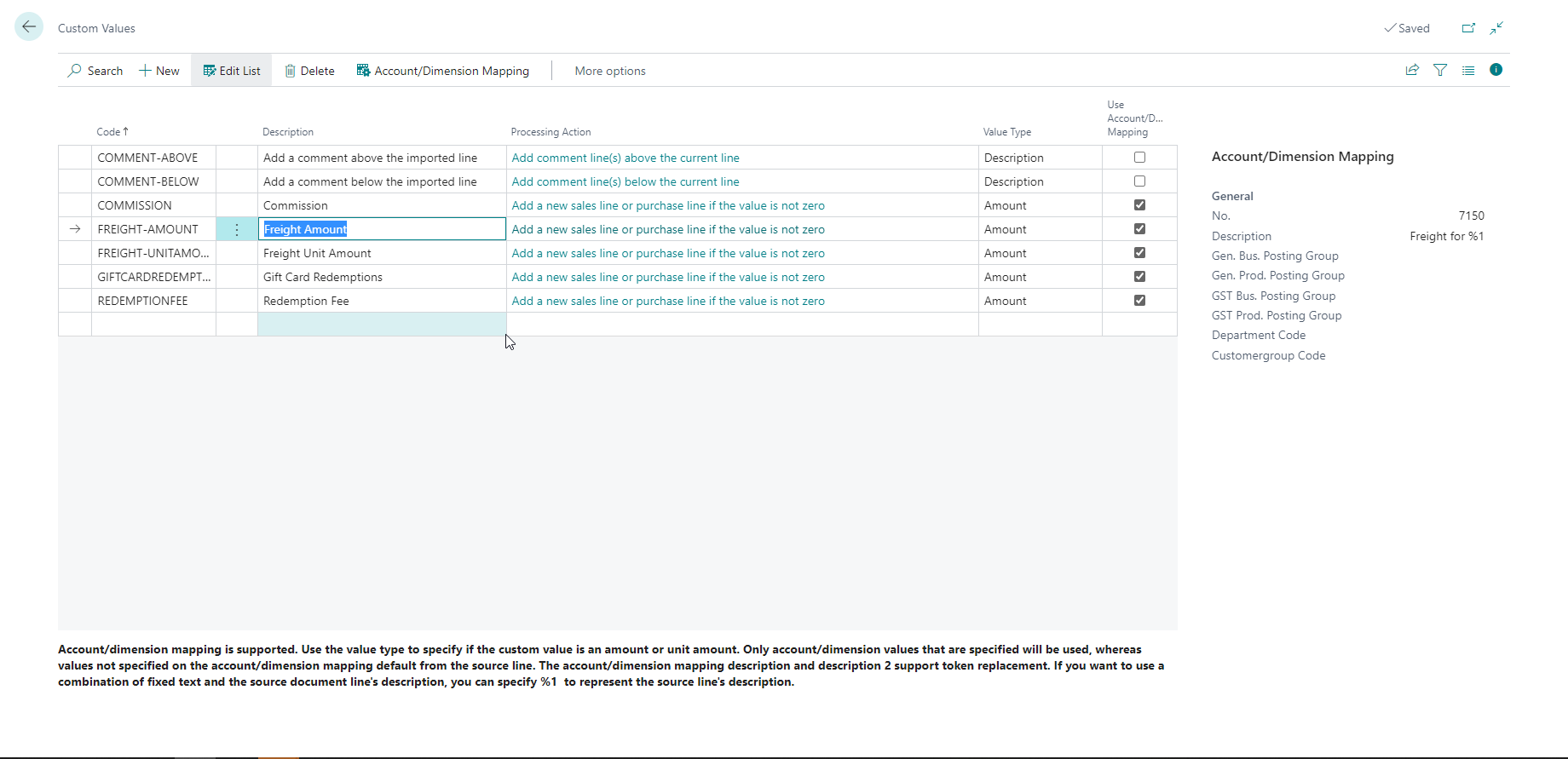
- A code and description that describes the purpose of the custom value.
- A processing action. Currently, Excel Importer ships with only one processing action available for both sales and purchase imports.
- The value type (e.g. Amount, Unit Amount, etc.)
- Account/Dimension mapping (if you want to use a different account/dimensions for the new line)
Default Rounding Precision
The program will apply a default rounding precision to the custom value based on the value type. Unit Amount and Amount will use the rounding precision defined on the general ledger setup. Quantity will use 0.00001.
We are referring to the default rounding precision for the processing action here. Remember that you can also specify different rounding precision on the Excel Mapping Template when you map to the custom value. Therefore you can change the rounding precision without using this event.
You will notice on the page that there is a detailed description of the custom action at the bottom of the page, which tells you more about the processing action and what it supports.
Processing Actions
Add a new sales line or purchase line if the value is not zero
This action uses the custom value that is imported from the file to create a new sales or purchase line when the value is not zero.
- Account/dimension mapping is supported.
- Only account/dimension values that are specified will be used, whereas values not specified on the account/dimension mapping default from the source line.
- The account/dimension mapping description and description 2 support token replacement. If you want to use a combination of fixed text and the source document line's description, you can specify %1 to represent the source line's description. This is shown in the
- You can use the value type in the custom values list to specify if the custom value is an amount or unit amount.
- If your Excel Mapping Template includes the line number, you can specify a line increment in the constant value so that the added lines can fit in with your line numbering.
Add comment lines to sales or purchase documents
There are two related processing actions you can use:
- Add comment line(s) above the current line
- Add comment line(s) below the current line These actions use a custom value that gets imported from the file to create one or more comment lines either above or below the imported line.
- Use account/dimension mapping to add a prefix to your comment. The app will only use values from the Description and Description 2 for this custom
- Specify if the app must copy the comment to the Description only or to the Description and Description 2.
- The app will create more than one line if the comment exceeds the length of the description field.
- When the app copies the value to multiple lines it wraps the text so that words do not get cut off.
- If your Excel Mapping Template includes the line number, you can specify a line increment in the constant value so that the added lines can fit in with your line numbering.
Set the balancing account to the control account
You can use this action on a General Journal import. You usually only want to do this when migrating opening balances from a legacy system. For example, you don't want the control account's balance to change if you import open items for your customers and separately import the opening balances for your general ledger.
This action aims to assist with migrating for opening balances where we want Business Central to post entries to this sub-ledger without changing the balance of the control accounts. If you are already live, using this action will cause an imbalance between the General Ledger and the Sub Ledger.
Item Variants and Item Attributes
Custom Values allow you to import Item Variants and Item Attributes while importing Items.
Requesting new processing actions
If you want to get a new processing action added or have an existing processing action enhanced, you can Request a New Feature. If we believe that this processing action is generic and could be helpful to other Business Central customers, then we want to add this to our product.
Adding new processing actions
You can add processing actions to Excel Importer with an extension. You will need to ask your partner for assistance with this. We have provided an example of how to do this here.
Our technical release notes include more information on the available events and some sample code. If you have any questions, please let us know.
Examples
Example 1: Excel Mapping Template Using Custom Values
Here is an example of a mapping template with a custom value. The column mapping below corresponds to the Excel file shown above.
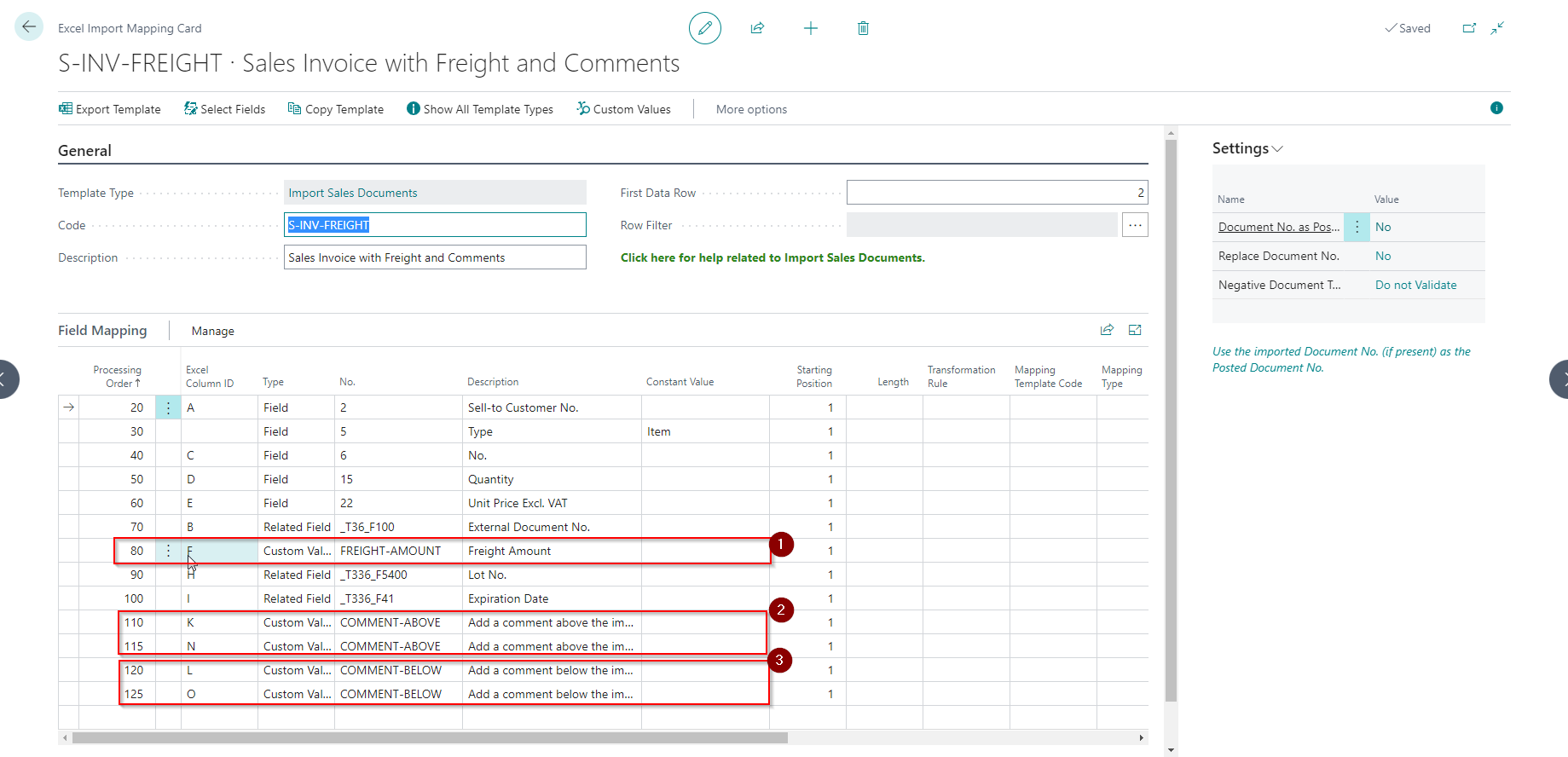
- This is the mapping for the freight amount.
- This is the mapping to add comment lines above the current line. Here we show that you can use more than one column from a file to create comment lines.
- This is the mapping to add comment lines below the current line. Here we show that you can use more than one column from a file to create comment lines.
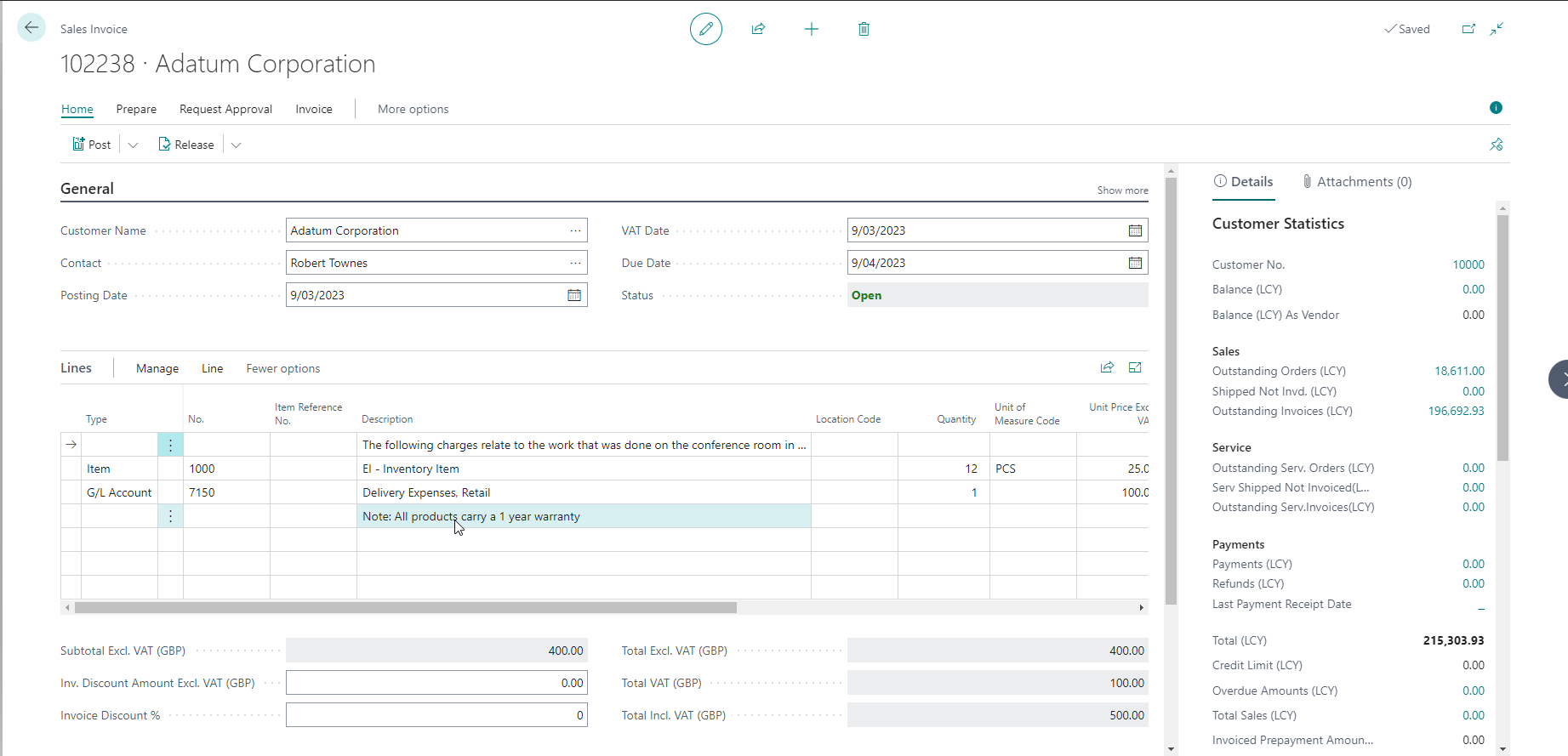
Here is the first invoice that got created from the file:
Example 2: Add an additional line to a sales document
We have created an example for sales imports where we use a custom value to add an additional line to a sales document. Click here to view this example.