Generic Workflow
The Generic Workflows extension enhances Microsoft Dynamics 365 Business Central with generic, field-level approval workflows and record restrictions for master data and other sensitive records.
Changes to vendor bank accounts, customer details, employee records, or G/L accounts can have a significant downstream impact. A single unauthorised change to a vendor's bank account number, for example, could result in payments being directed to the wrong account. Generic Workflows lets you put an approval gate in front of those changes so they are reviewed before they take effect.
The extension offers two complementary features:
- Approval Workflows — Create workflow templates for any table and specify which field changes trigger an approval request. Changes are tracked, and approvers can review old and new values before approving or rejecting.
- Record Restrictions — Restrict modifications to specific fields based on conditions (e.g. prevent changes to a purchase order line description once the order is released).
Multi-Field Change Tracking
A key differentiator of Generic Workflows is how it handles record changes. Rather than triggering a separate workflow for each individual field change, you select which fields on a table are sensitive or business-critical, and a single workflow tracks changes across all of them. A user can modify several monitored fields in one editing session and all of those changes are captured together under a single approval request.
In practice, changes rarely happen in isolation. When a vendor switches banks, for example, you might need to update the Bank Branch No., Bank Account No., and Name all at once. The user makes all of those changes, reviews them, and only then sends the record for approval. As soon as a monitored field is modified, the extension tracks the change and restricts the record — preventing it from being used in downstream processes such as payment generation while changes are pending. The new values remain visible on the record so that approvers can see exactly what was changed, and the full set of old and new values is displayed in the Changes to Approve FactBox for review. If the request is approved, the restriction is lifted and the new values are kept. If it is rejected or cancelled, the fields are reverted to their previous values and the restriction is removed.
Example — Vendor Bank Account Approvals
Consider a typical accounts payable scenario:
- A user changes the Bank Account No. on a vendor bank account record.
- Generic Workflow detects the change and automatically creates an approval request.
- The record is locked — it cannot be used to generate EFT payments while the change is pending.
- An approver reviews the old and new bank account details in the Changes to Approve FactBox and approves or rejects the request.
- Once approved, the record is unlocked and available for use again.
This ensures that sensitive banking details are always reviewed by a second pair of eyes before they can affect outgoing payments.
When Generic Workflow locks a record with a pending approval, it creates a record restriction in Business Central. However, the existence of a record restriction does not automatically prevent the record from being used everywhere in the system. The application or extension that consumes the data must explicitly check for record restrictions and enforce them.
For example, in our ANZ Accelerator extension, the EFT payment generation process checks for record restrictions on vendor bank accounts and will not generate a payment file for any bank account that has unapproved pending changes. If your application does not perform this check, the record restriction will have no practical effect on that process.
When planning your workflow implementation, verify that the downstream processes relying on the restricted data actively enforce record restrictions.
Included Pages
The extension includes built-in workflow support for the following pages:
| Page | Type |
|---|---|
| Vendor Card | Card |
| Vendor List | List |
| Vendor Bank Account Card | Card |
| Vendor Bank Account List | List |
| Customer Card | Card |
| Customer List | List |
| Customer Bank Account Card | Card |
| Customer Bank Account List | List |
| Employee Card | Card |
| Employee List | List |
| G/L Account Card | Card |
| Chart of Accounts | List |
| Item Card | Card |
| Item List | List |
Need to add workflow support to a page not listed here? See Enable Workflows on More Pages for a step-by-step guide with code examples.
Setup
Generic Workflow Setup
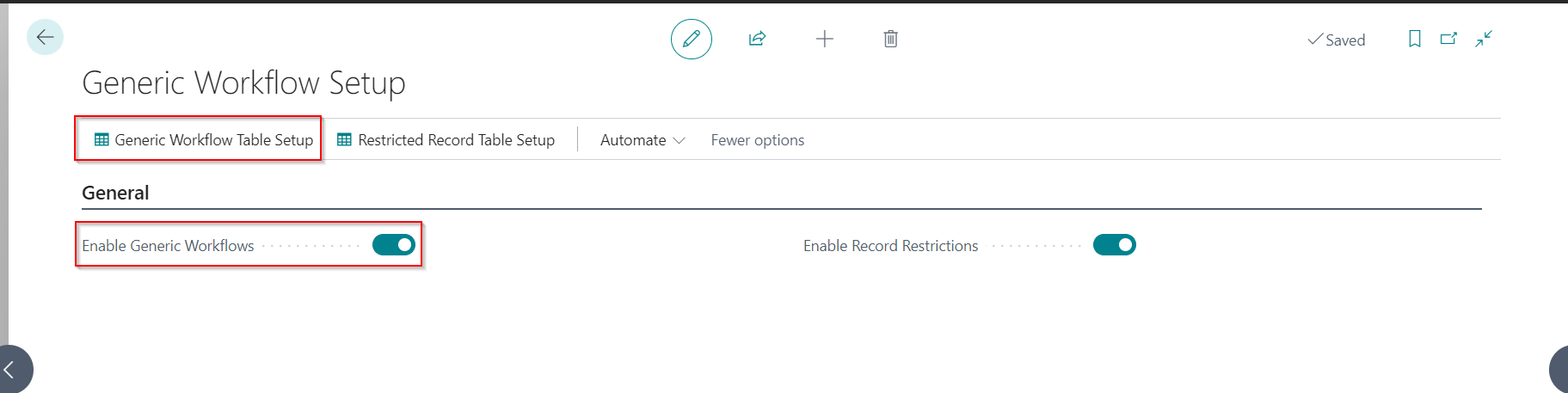
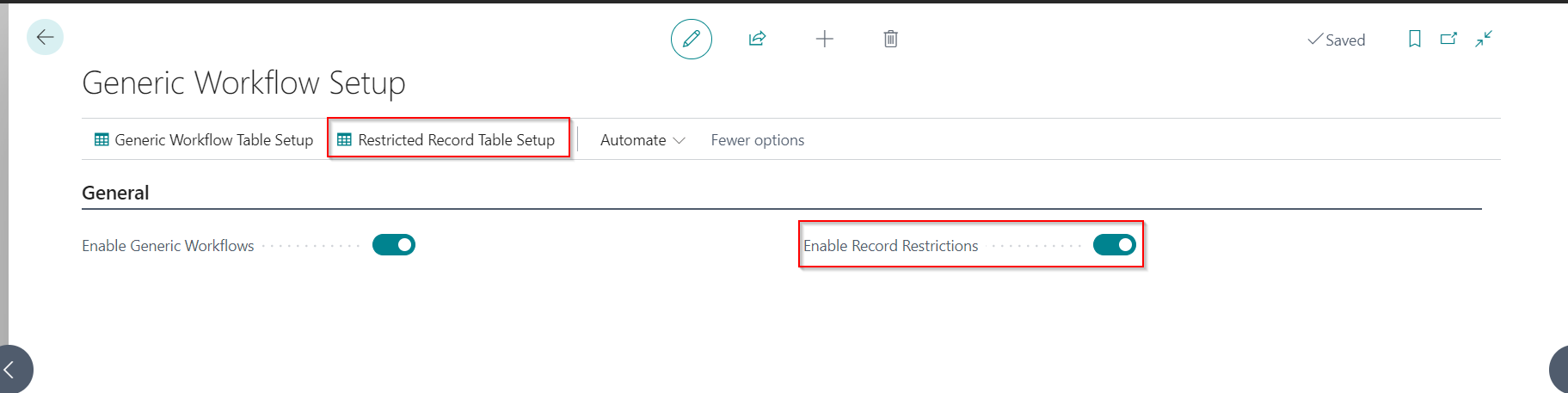
You specify which features you want to use on the Generic Workflow Setup page.

| Field | Purpose |
|---|---|
| General | |
| Enable Generic Workflows | Specifies that the generic workflow is enabled. This feature allows you to create workflow templates for any table. |
| Enable Record Restrictions | Specifies if the Record Restrictions feature is enabled. This feature allows you to set up modification restrictions for pre-defined fields. For example, you can prevent changes to a purchase order line''s description once approved. |
This is a global setting that can enable/disable all generic workflows.
Enable Generic Workflows
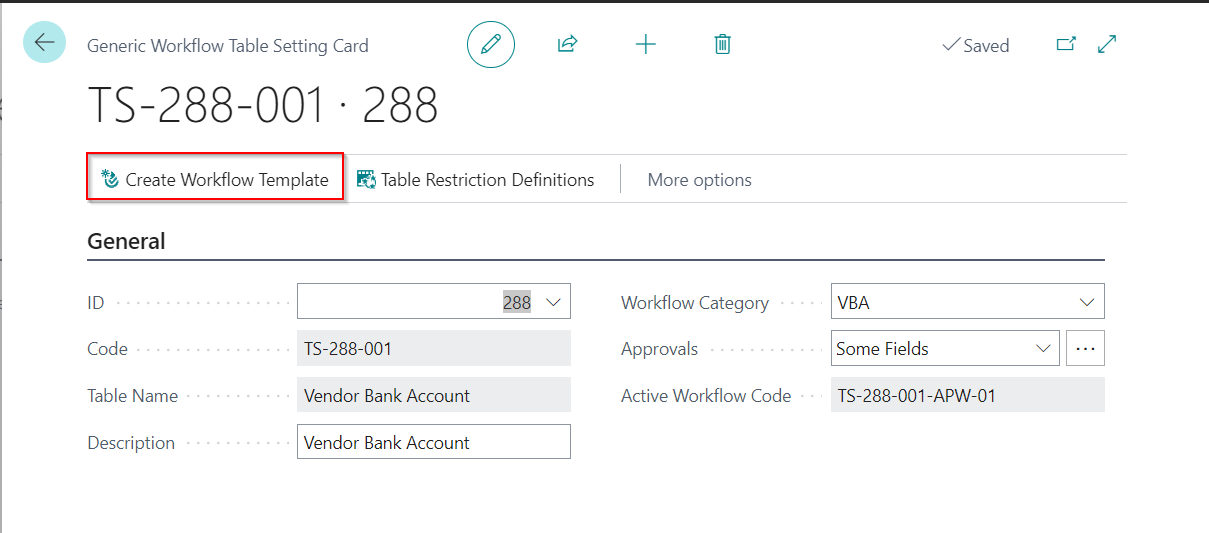
Once the generic workflow feature is enabled, you can use the Generic Workflow Table Setup action to set up the table for which you want to create a workflow template.
Enter the table details, workflow description and category.
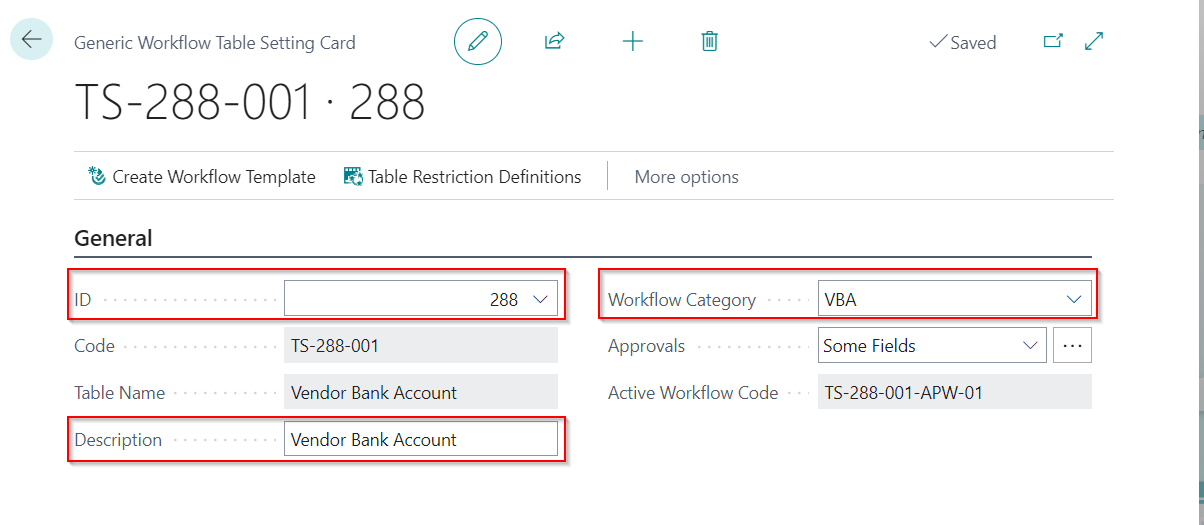
| Field | Purpose |
|---|---|
| General | |
| ID | Specifies the ID of the table. |
| Code | Specifies the workflow code (auto-generated). |
| Table Name | Specifies the name of the table. |
| Description | Specifies the workflow description. |
| Workflow Category | Specifies the workflow category. |
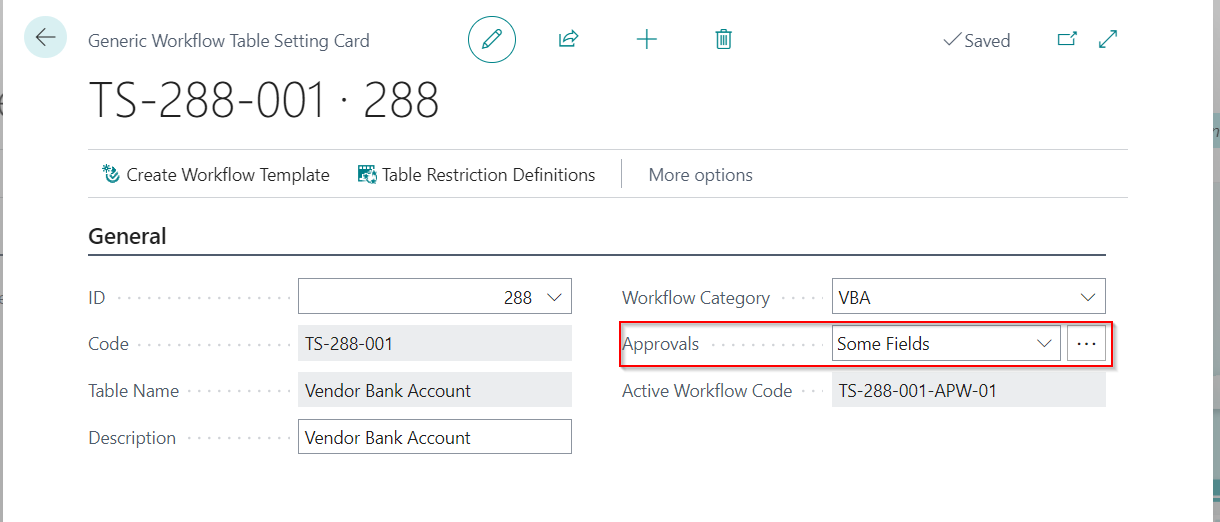
| Approvals | Specify if the approval workflow is triggered for all or some selected fields. |
| Active Workflow Code | Specifies the active workflow code for the table. |
Click the assist button on approvals to select/update the fields that require approval.
Select the fields from the field list.
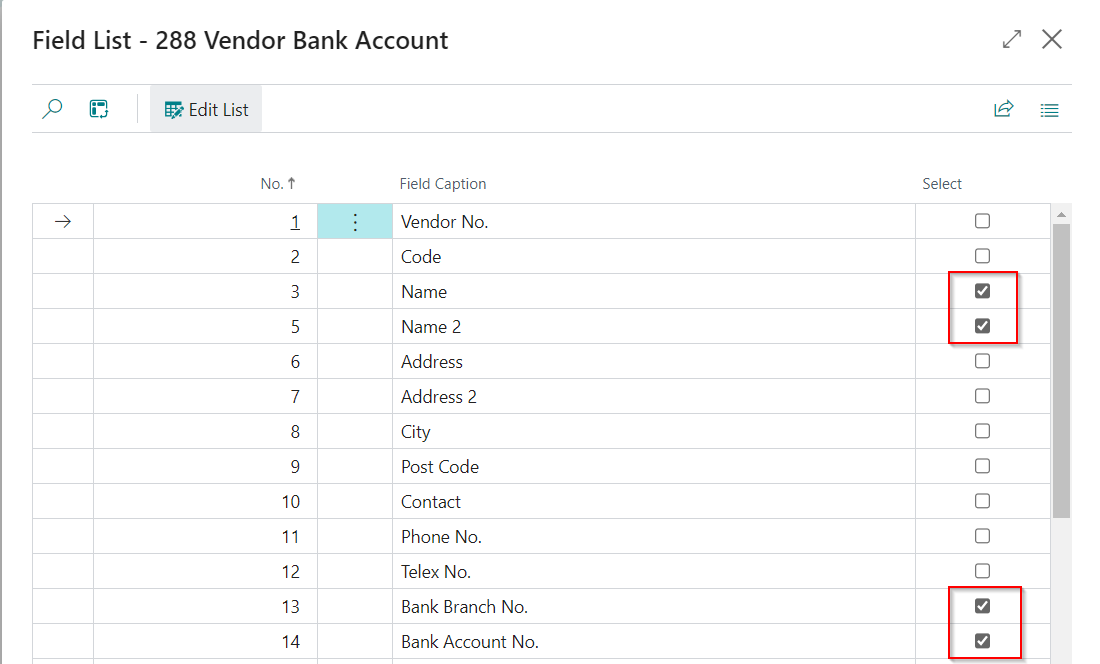
| Field | Purpose |
|---|---|
| General | |
| No. | Specifies the field number. |
| Field Caption | Specifies the field caption. |
| Select | Specify if the approval workflow is required for the field. |
Once the fields are selected, click on the Create Workflow Template action to create a workflow template for the table.
You can then use the workflow template to create a new workflow.
Enable Record Restrictions
Once the record restrictions are enabled, you can set up the field restriction for a table using the Restricted Record Table Setup action.
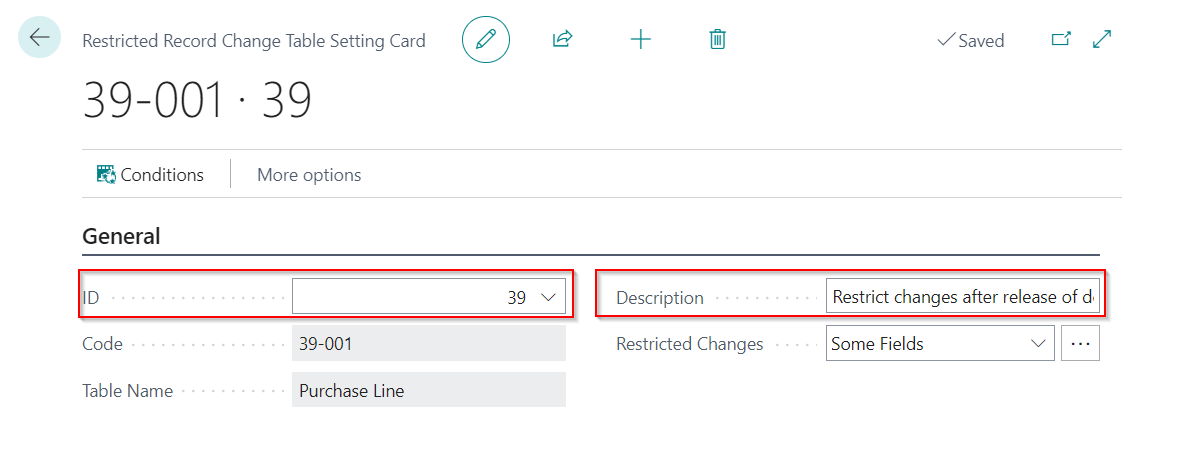
Enter the table details and description.
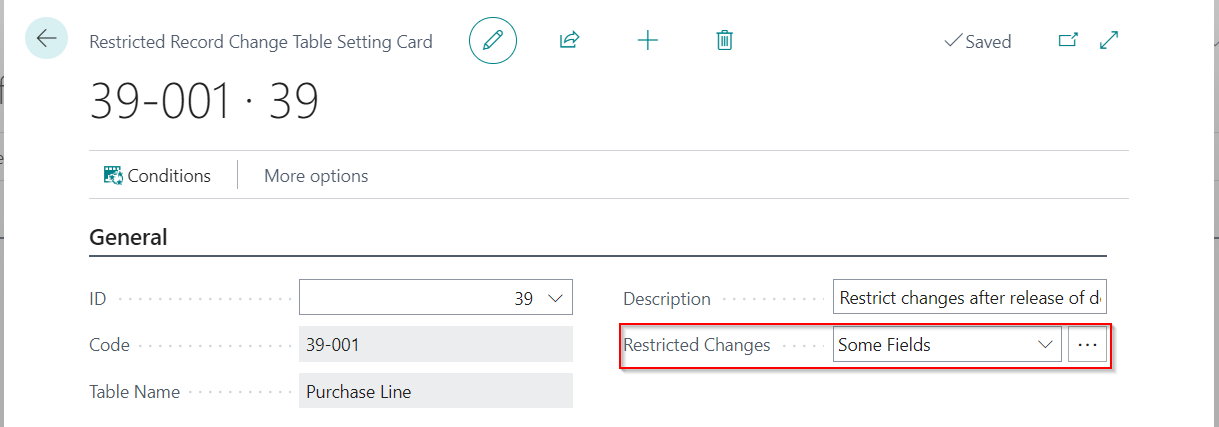
Click the assist button on restricted changes to select/update the fields that must be restricted.
Select the fields from the field list.
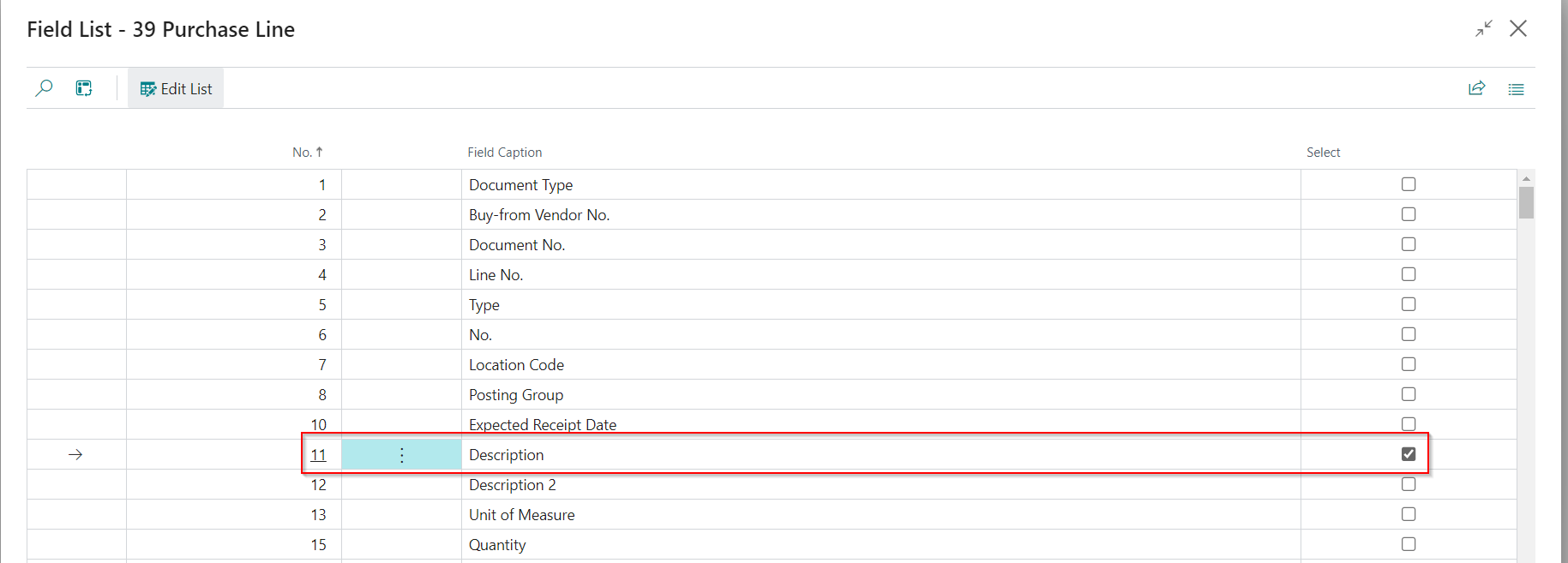
| Field | Purpose |
|---|---|
| General | |
| No. | Specifies the field number. |
| Field Caption | Specifies the field caption. |
| Select | Specify whether to include the field in the restricted list . |
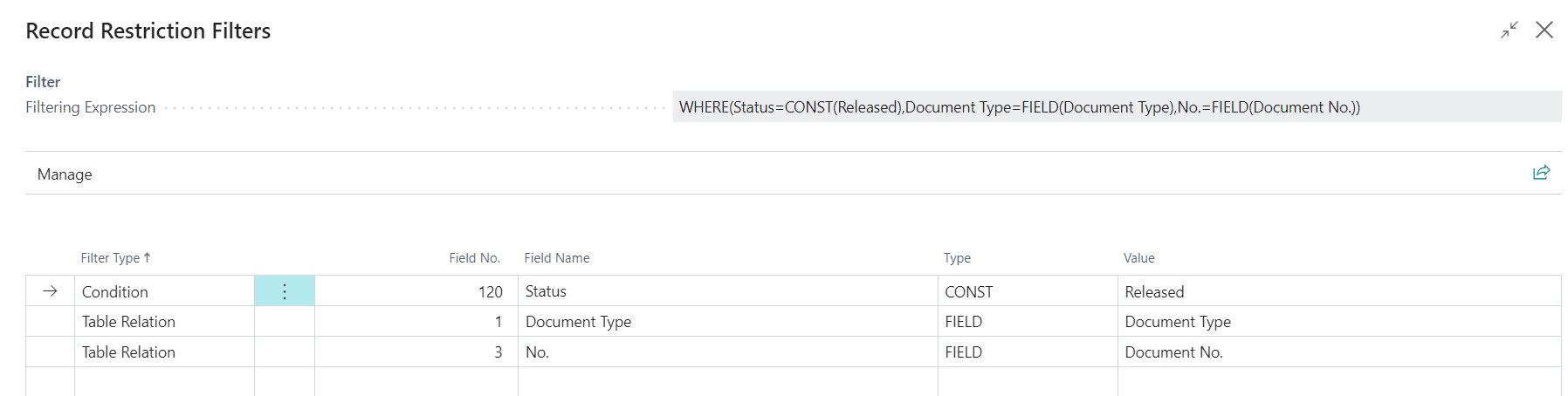
Using the record restriction filters, you can set conditions and filters for field restriction. For example, changing the purchase line description is restricted once the purchase order is released.
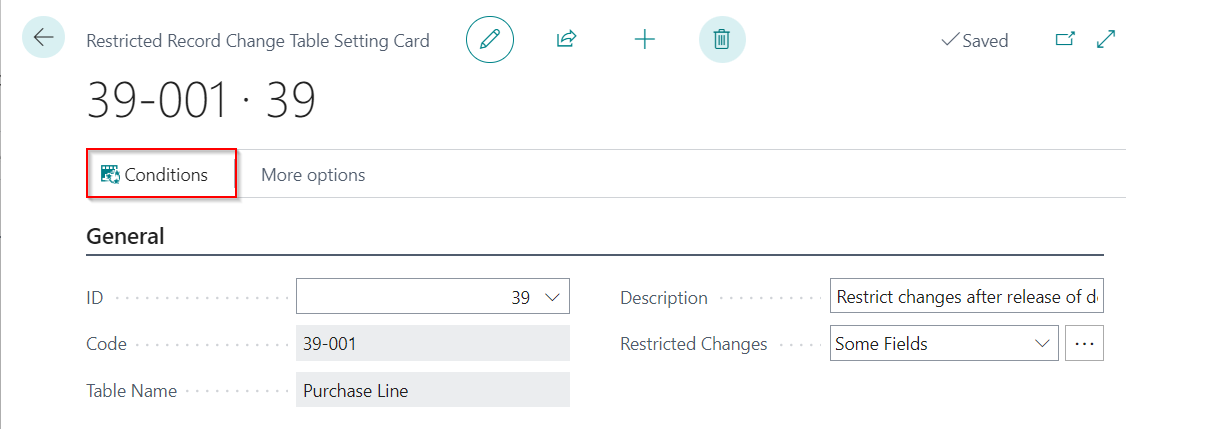
Add the table, conditions, table relations and filters.

Related Apps
This app can be used as a companion app with the Australia/New Zealand Accelerator to support approval workflows on the following tables:
- Vendor Bank Account
- Customer Bank Account
Supported Countries
This app is supported in all countries, where Microsoft Dynamics 365 Business Central is available.