File Importer API
The File Importer API allows you to automate the import of files (Excel and Text). You can access this API using services such as Power Automate or Logic Apps, as well as any external system capable of calling REST APIs. We have also made several methods available to Business Central developers who prefer to automate the imports using a Business Central extension.
To use the File Importer API, you must have a Premium plan.
Getting Started
To use the API, you need to do some additional setup to what is required when you import the files manually. We suggest that you first test importing the file from the front end and only then automating it.
The following setup is required:
- Create the Excel Mapping Template. You can use an existing template if you have previously set one up.
- Create an Import Definition.
Import Definitions
The app allows you to define Import Definitions to specify the additional fields/settings the app adds based on where an import has been triggered. For example, the app automatically updates the document type for sales and purchase documents, and this field is not available in the mapping template.
You can access the Import Definitions page from Tell Me or from the Imported Files page.
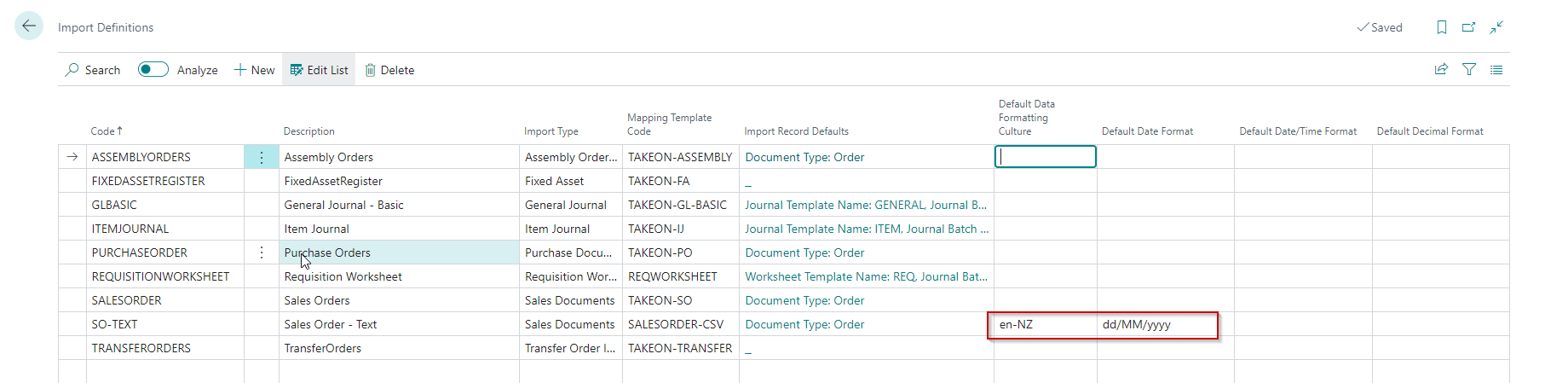
| Field | Purpose |
|---|---|
| Code | Specifies a unique reference for this import type. The app allows for 50 characters, so you can make this code meaningful, as this code is one of the values an external system must pass on to the API. For example, TP.INVOICES.01. |
| Description | Specifies a description for the import. |
| Import Type | Specifies the type of import. |
| Template Code | Specifies the Template Code to use for the import. |
| Import Record Defaults | Specifies field values used by the app when importing new records. This field typically contains values like a Document Type for Sales and Purchases or a Template and Batch name for Journal Imports. |
| Log Distinct Errors Only | Specifies that you only want to collect distinct errors. For example, if one missing customer causes 100 errors, you will only see the first error logged for this customer. |
| Default Data Format Culture | Specifies the Default Data Formatting Culture when importing Dates, Date/Time or Decimals from text files. You can override this on a field-by-field basis where applicable on the Mapping Template. |
| Default Date Format | Specifies the Default Date Format when importing dates from text files. |
| Default Date/Time Format | Specifies the Default Date/Time Format when importing date/times from text files. |
| Default Decimal Format | Specifies the Default Decimal Format when importing decimals from text files. |
When a user manually imports a file, the app uses the user's locale (regional settings). However, when the import is processed through the API, this will run as a web client, which could be a different locale from the file. The Default Data Format Culture and related fields overcome this issue, so you don't have to change the file.
Imported Files
This page contains a list of the files imported through the API. You can use this page to test your imports before you try to automate them, and you can check for any errors. You can access this page from Tell Me.

| Field | Purpose |
|---|---|
| Created At | Specifies when the external system triggered the import. |
| Id | Specifies a unique ID that is auto-incremented. |
| File Name | Specifies the File Name of the source file. |
| Import Definition | Specifies the Import Definition Code. |
| Excel Sheet Name | Specifies the Excel Sheet Name if the imported file is an Excel file. |
| File Type | Specifies the File Type. |
| Text File Encoding | Specifies the Text File Encoding if the imported file is a text file. |
| Correlation Id | Specifies the Correlation Id. The Correlation Id is a unique identifier that an external system can set. This is useful to prevent the same file from being imported more than once. It also allows the external system to track the status of the import using a reference originating from the external system. |
| Processing Method | Specifies the Processing Method. The app supports Immediate, Background and Manual. |
| Status | Specifies the Status of the import. |
| Request Data Exchange Entry No. | Specifies the Request Data Exchange Entry where the file content is stored. |
| Response Data Exchange Entry No. | Specifies the Response Data Exchange Entry where the response is stored. Note: In the future, we plan to store collected errors as well. |
Statuses
| Value | Purpose |
|---|---|
| New | This indicates that the Imported File record is not yet ready to process as not all information is updated. For example, the API first inserts the Imported File record and then it inserts the Imported File Parameters. |
| Received | This indicates that the file and all parameters have been received and will be processed immediately. |
| Queued for Processing | Indicates that the file has been received and will be processed in the background |
| Processing | The file is busy being imported. |
| Finished | The file was imported successfully. |
| Failed | The import failed - use the Show Error action to view the error. |
| Queued for Retry | This status is not currently in use. |
| Cancelled | This status is not currently in use. |
Actions
| Action | Purpose |
|---|---|
| Import File | Allows you to import a file using an import definition. Usually, you only use this to test and import that you want to automate. |
| Export File | Exports the file associated with this import. |
| Retry | Retries the import. You can use this action when you have resolved the cause of an error. The action will complete the processing; if there are no errors, the app will change the status to finished. |
| Show Error | Shows the error message associated with the import. |
| Import Definitions | Opens the Import Definitions page where you configure the information required to use Excel Importer's API. |
API Requests
Endpoint
Your API requests must be made to the following endpoint:
https://api.businesscentral.dynamics.com/v2.0/{{tentantId}}/{{BCEnvName}}/api/theta/importer/v1.0/companies({{companyId}})/importFiles
Please note the variables in the above endpoint that you should replace with actual values:
| Variable | Example |
|---|---|
{{tenantId}} | 11f8d7aa-a7d6-4c8a-b7c3-7779699fde3a |
{{BCEnvName}} | Production |
{{companyId}} | 7606b496-600c-4b22-862f-c124a4a539d7 |
Example 1: Text File
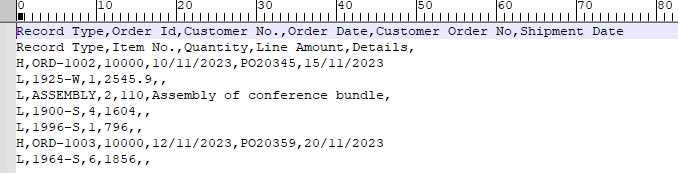
In this example, we convert the following CSV file to Base64:
{
    "fileAsBase64": "UmVjb3JkIFR5cGUsT3JkZXIgSWQsQ3VzdG9tZXIgTm8uLE9yZGVyIERhdGUsQ3VzdG9tZXIgT3JkZXIgTm8sU2hpcG1lbnQgRGF0ZQ0KUmVjb3JkIFR5cGUsSXRlbSBOby4sUXVhbnRpdHksTGluZSBBbW91bnQsRGV0YWlscywNCkgsT1JELTEwMDIsMTAwMDAsMTAvMTEvMjAyMyxQTzIwMzQ1LDE1LzExLzIwMjMNCkwsMTkyNS1XLDEsMjU0NS45LCwNCkwsQVNTRU1CTFksMiwxMTAsQXNzZW1ibHkgb2YgY29uZmVyZW5jZSBidW5kbGUsDQpMLDE5MDAtUyw0LDE2MDQsLA0KTCwxOTk2LVMsMSw3OTYsLA0KSCxPUkQtMTAwMywxMDAwMCwxMi8xMS8yMDIzLFBPMjAzNTksMjAvMTEvMjAyMw0KTCwxOTY0LVMsNiwxODU2LCwNCg==",
    "fileName": "EI-CSV-Sample.csv",
    "fileType": "Text",
    "textFileEncoding": "Windows",
    "correlationId": null,
    "processingMethod": "Immediate",
    "fileImportParameters": [
        {
            "importDefinitionCode": "SO-TEXT",
            "excelSheetName": ""
        }
    ]
}
Example 2: Excel File
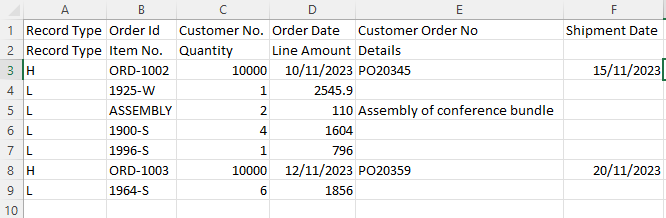
In this example, we convert the following Excel file to Base64:
{
    "fileName": "EI-Excel-Sample",
    "fileType": "Excel",
    "correlationId": null,
    "processingMethod": "Immediate",
    "numberOfParameters": 1,
    "fileImportParameters": [
        {
            "importDefinitionCode": "SO-EXCEL",
            "excelSheetName": "SO"
        }
    ],
    "fileAsBase64": "UEsDBBQABgAIAAAAIQBi7p1oXgEAAJAEAAATAAgCW0NvbnRlbnRfVHlwZXNdLnhtbCCiBAIooAACAAAAAAAAAAAAAAAAAAAAAAAAAAAAAAAAAAAAAAAAAAAAAAAAAAAAAAAAAAAAAAAAAAAAAAAAAAAAAAAAAAAAAAAAAAAAAAAAAAAAAAAAAAAAAAAAAAAAAAAAAAAAAAAAAAAAAAAAAAAAAAAAAAAAAAAAAAAAAAAAAAAAAAAAAAAAAAAAAAAAAAAAAAAAAAAAAAAAAAAAAAAAAAAAAAAAAAAAAAAAAAAAAAAAAAAAAAAAAAAAAAAAAAAAAAAAAAAAAAAAAAAAAAAAAAAAAAAAAAAAAAAAAAAAAAAAAAAAAAAAAAAAAAAAAAAAAAAAAAAAAAAAAAAAAAAAAAAAAAAAAAAAAAAAAAAAAAAAAAAAAAAAAAAAAAAAAAAAAAAAAAAAAAAAAAAAAAAAAAAAAAAAAAAAAAAAAAAAAAAAAAAAAAAAAAAAAAAAAAAAAAAAAAAAAAAAAAAAAAAAAAAAAAAAAAAAAAAAAAAAAAAAAAAAAAAAAAAAAAAAAAAAAAAAAAAAAAAAAAAAAAAAAAAAAAAAAAAAAAAAAAAAAAAAAAAAAAAAAAAAAAAAAAAAAAAAAAAAAAAAAAAAAAAAAAAAAAAAAAAAAAAAAAAAAAAAAAAAAAAAAAAAAAAAAAAAAAAAAAAAAAAAAAAAAAAAAAAAAAAAAAAAAAAAAAAAAAAAAAAAAACslMtOwzAQRfdI/EPkLUrcskAINe2CxxIqUT7AxJPGqmNbnmlp/56J+xBCoRVqN7ESz9x7MvHNaLJubbaCiMa7UgyLgcjAVV4bNy/Fx+wlvxcZknJaWe+gFBtAMRlfX41mmwCYcbfDUjRE4UFKrBpoFRY+gOOd2sdWEd/GuQyqWqg5yNvB4E5W3hE4yqnTEOPRE9RqaSl7XvPjLUkEiyJ73BZ2XqVQIVhTKWJSuXL6l0u+cyi4M9VgYwLeMIaQvQ7dzt8Gu743Hk00GrKpivSqWsaQayu/fFx8er8ojov0UPq6NhVoXy1bnkCBIYLS2ABQa4u0Fq0ybs99xD8Vo0zL8MIg3fsl4RMcxN8bZLqej5BkThgibSzgpceeRE85NyqCfqfIybg4wE/tYxx8bqbRB+QERfj/FPYR6brzwEIQycAhJH2H7eDI6Tt77NDlW4Pu8ZbpfzL+BgAA//8DAFBLAwQUAAYACAAAACEAtVUwI/QAAABMAgAACwAIAl9yZWxzLy5yZWxzIKIEAiigAAIAAAAAAAAAAAAAAAAAAAAAAAAAAAAAAAAAAAAAAAAAAAAAAAAAAAAAAAAAAAAAAAAAAAAAAAAAAAAAAAAAAAAAAAAAAAAAAAAAAAAAAAAAAAAAAAAAAAAAAAAAAAAAAAAAAAAAAAAAAAAAAAAAAAAAAAAAAAAAAAAAAAAAAAAAAAAAAAAAAAAAAAAAAAAAAAAAAAAAAAAAAAAAAAAAAAAAAAAAAAAAAAAAAAAAAAAAAAAAAAAAAAAAAAAAAAAAAAAAAAAAAAAAAAAAAAAAAAAAAAAAAAAAAAAAAAAAAAAAAAAAAAAAAAAAAAAAAAAAAAAAAAAAAAAAAAAAAAAAAAAAAAAAAAAAAAAAAAAAAAAAAAAAAAAAAAAAAAAAAAAAAAAAAAAAAAAAAAAAAAAAAAAAAAAAAAAAAAAAAAAAAAAAAAAAAAAAAAAAAAAAAAAAAAAAAAAAAAAAAAAAAAAAAAAAAAAAAAAAAAAAAAAAAAAAAAAAAAAAAAAAAAAAAAAAAAAAAAAAAAAAAAAAAAAAAAAAAAAAAAAAAAAAAAAAAAAAAAAAAAAAAAAAAAAAAAAAAAAAAAAAAAAAAAAAAAAAAAAAAAAAAAAAAAAAAAAAAAAAAAAAAAAAAAAAAAAAAAAAAAAAAAAAAAAAAAAAAAAAAAAAAAAAAAAAAAAAAAAAAAAAAKySTU/DMAyG70j8h8j31d2QEEJLd0FIuyFUfoBJ3A+1jaMkG92/JxwQVBqDA0d/vX78ytvdPI3qyCH24jSsixIUOyO2d62Gl/pxdQcqJnKWRnGs4cQRdtX11faZR0p5KHa9jyqruKihS8nfI0bT8USxEM8uVxoJE6UchhY9mYFaxk1Z3mL4rgHVQlPtrYawtzeg6pPPm3/XlqbpDT+IOUzs0pkVyHNiZ9mufMhsIfX5GlVTaDlpsGKecjoieV9kbMDzRJu/E/18LU6cyFIiNBL4Ms9HxyWg9X9atDTxy515xDcJw6vI8MmCix+o3gEAAP//AwBQSwMEFAAGAAgAAAAhADvQdKqeAgAAFgYAAA8AAAB4bC93b3JrYm9vay54bWykVNtuozAQfV9p/8HyOwETQlNUUrVJo420l2p7e4lUOcYJVsFmbdOkqvrvO4aQNpuXbosSGzPmcM7MGZ+cbsoCPXJthJIpJr0AIy6ZyoRcpfjmeuoNMTKWyowWSvIUP3GDT0dfv5yslX5YKPWAAECaFOfWVonvG5bzkpqeqriEyFLpklpY6pVvKs1pZnLObVn4YRDEfkmFxC1Cot+DoZZLwfhEsbrk0rYgmhfUAn2Ti8p0aCV7D1xJ9UNdeUyVFUAsRCHsUwOKUcmS2UoqTRcFyN6QAdpo+MXwJwEMYfclCB18qhRMK6OWtgfQfkv6QD8JfEL2UrA5zMH7kCJf80fharhjpeMPsop3WPErGAk+jUbAWo1XEkjeB9EGO24hHp0sRcFvW+siWlU/aekqVWBUUGMvMmF5luIjWKo133ug6+q8FgVEw6OwT7A/2tn5UqOML2ld2GswcgcPnRHHx+HA7QRjnBWWa0ktHytpwYdbXZ/1XIM9zhU4HP3mf2qhOTQW+Au0wkhZQhfmktoc1bpI8TiZ3xiQP2eailVvQfWCayHFfKLWslDQavM3HqWHDfEfLqXMSfdBe8uvvf83D0BTJ50TL61GcD+bfIdqXNFHqA04INu27gyST/r3kumE3D8Hx2Qc94eRN5lOQi86iy68s2AcedHF+TAg5/1pGE5eQIyOE6ZobfNt2R10iiOo8UHoB910ERIktcheaTwH28tz8z9DF3txgt0Bdyv42rwaxC3R5k7ITK3BP/FwgNHT/nLdBO9EZnPYQeIAdLfPvnGxyoExIeExvAeN4JileI/RpGU0hctzwx4j/w2l5igFas2MZGP/q19wXrsjtkkwRjpx+HqWNS73u1cYLRhY3U1uY9BUtzvSR38BAAD//wMAUEsDBBQABgAIAAAAIQCBPpSX8wAAALoCAAAaAAgBeGwvX3JlbHMvd29ya2Jvb2sueG1sLnJlbHMgogQBKKAAAQAAAAAAAAAAAAAAAAAAAAAAAAAAAAAAAAAAAAAAAAAAAAAAAAAAAAAAAAAAAAAAAAAAAAAAAAAAAAAAAAAAAAAAAAAAAAAAAAAAAAAAAAAAAAAAAAAAAAAAAAAAAAAAAAAAAAAAAAAAAAAAAAAAAAAAAAAAAAAAAAAAAAAAAAAAAAAAAAAAAAAAAAAAAAAAAAAAAAAAAAAAAAAAAAAAAAAAAAAAAAAAAAAAAAAAAAAAAAAAAAAAAAAAAAAAAAAAAAAAAAAAAAAAAAAAAAAAAAAAAAAAAAAAAAAAAAAAAAAAAAAAAAAAAAAAAAAAAAAAAAAAAAAAAAAAAAAAAAAAAACsUk1LxDAQvQv+hzB3m3YVEdl0LyLsVesPCMm0KdsmITN+9N8bKrpdWNZLLwNvhnnvzcd29zUO4gMT9cErqIoSBHoTbO87BW/N880DCGLtrR6CRwUTEuzq66vtCw6acxO5PpLILJ4UOOb4KCUZh6OmIkT0udKGNGrOMHUyanPQHcpNWd7LtOSA+oRT7K2CtLe3IJopZuX/uUPb9gafgnkf0fMZCUk8DXkA0ejUISv4wUX2CPK8/GZNec5rwaP6DOUcq0seqjU9fIZ0IIfIRx9/KZJz5aKZu1Xv4XRC+8opv9vyLMv072bkycfV3wAAAP//AwBQSwMEFAAGAAgAAAAhAKvdT4kxAwAARgoAABgAAAB4bC93b3Jrc2hlZXRzL3NoZWV0MS54bWyckktrwzAMgO+D/Qfje+skfbCGpmVQynobe90dR2lMYzvY7oux/z45XdtBLqXGlp/6JFmazg+qJjuwThqd0bgfUQJamELqdUY/P5a9J0qc57rgtdGQ0SM4Op89Pkz3xm5cBeAJErTLaOV9kzLmRAWKu75pQONNaaziHrd2zVxjgRetkqpZEkVjprjU9ERI7S0MU5ZSwMKIrQLtTxALNffov6tk4840JW7BKW4326YnjGoQkcta+mMLpUSJdLXWxvK8xrgP8ZALcrDYExyDs5n2vGNJSWGNM6XvI5mdfO6GP2ETxsWF1I3/Jkw8ZBZ2MiTwikrucykeXVjJFTa4Eza+wMJ32XQri4x+R3+th3McRHQV57sfOpsWEjMcoiIWyow+x+lyQtls2tbPl4S9+7cmnufvUIPwgDZiSkJ55sZswsMVHkVBlXV0l215vlpSQMm3tX8z+xeQ68ojZIROh6ynxXEBTmC5IaafjJD0CwAA//8AAAD//5SV626DMAyFXwXxAIWEhEtFkVou74EY0n51VUFsffs5ZCK21UhLf7X+THROjk3r5XOe125cx6Z+fn1Hz0ss4mh5jPcFvp3zOPoRapzOH69uXqb5vl7i9CR13NST6b1CM5QW+L01aZ1sTZ1Mf+yGmaCsxUxS1mGWUdZjpigbMNMHS8DW4U2GeINmrzfMcuYNs4J5w6xk3jCr3uvPQvRD86Ff8HAI5Olke54ihQ/TbwSYETF5Ky0V4z05lgU78Ic9IakQk9DsTLJpuRHIxqVV1iQzaKtSK33yZKBD5EGzXx6B7jL2zWrNjm0N3w1bFTzOnhzlBpIMPyzz/xcbmv3CCWQj3uZ2ONi92qrIUxcDEVeEiINmvzgC2Y61xdvQbbWoPBdXhmiDZv/WEejmyyZeerfOCMBbx6aix8dKtpIDe1g7TgKoQkxCsz8ADCV/tVS7SfbK7GxVlJonkLj/p18AAAD//wAAAP//silITE/1TSxKz8wrVshJTSuxVTLQM1dSKMpMz4CxS/ILwKKmSgpJ+SUl+bkwXkZqYkpqEYhnrKSQlp9fAuPo29nol+cXZRdnpKaW2AEAAAD//wMAUEsDBBQABgAIAAAAIQDBFxC+TgcAAMYgAAATAAAAeGwvdGhlbWUvdGhlbWUxLnhtbOxZzYsbNxS/F/o/DHN3/DXjjyXe4M9sk90kZJ2UHLW27FFWMzKSvBsTAiU59VIopKWXQm89lNJAAw299I8JJLTpH9EnzdgjreUkm2xKWnYNi0f+vaen955+evN08dK9mHpHmAvCkpZfvlDyPZyM2Jgk05Z/azgoNHxPSJSMEWUJbvkLLPxL259+chFtyQjH2AP5RGyhlh9JOdsqFsUIhpG4wGY4gd8mjMdIwiOfFsccHYPemBYrpVKtGCOS+F6CYlB7fTIhI+wNlUp/e6m8T+ExkUINjCjfV6qxJaGx48OyQoiF6FLuHSHa8mGeMTse4nvS9ygSEn5o+SX95xe3LxbRViZE5QZZQ26g/zK5TGB8WNFz8unBatIgCINae6VfA6hcx/Xr/Vq/ttKnAWg0gpWmttg665VukGENUPrVobtX71XLFt7QX12zuR2qj4XXoFR/sIYfDLrgRQuvQSk+XMOHnWanZ+vXoBRfW8PXS+1eULf0a1BESXK4hi6FtWp3udoVZMLojhPeDINBvZIpz1GQDavsUlNMWCI35VqM7jI+AIACUiRJ4snFDE/QCLK4iyg54MTbJdMIEm+GEiZguFQpDUpV+K8+gf6mI4q2MDKklV1giVgbUvZ4YsTJTLb8K6DVNyAvnj17/vDp84e/PX/06PnDX7K5tSpLbgclU1Pu1Y9f//39F95fv/7w6vE36dQn8cLEv/z5y5e///E69bDi3BUvvn3y8umTF9999edPjx3a2xwdmPAhibHwruFj7yaLYYEO+/EBP53EMELEkkAR6Hao7svIAl5bIOrCdbDtwtscWMYFvDy/a9m6H/G5JI6Zr0axBdxjjHYYdzrgqprL8PBwnkzdk/O5ibuJ0JFr7i5KrAD35zOgV+JS2Y2wZeYNihKJpjjB0lO/sUOMHau7Q4jl1z0y4kywifTuEK+DiNMlQ3JgJVIutENiiMvCZSCE2vLN3m2vw6hr1T18ZCNhWyDqMH6IqeXGy2guUexSOUQxNR2+i2TkMnJ/wUcmri8kRHqKKfP6YyyES+Y6h/UaQb8KDOMO+x5dxDaSS3Lo0rmLGDORPXbYjVA8c9pMksjEfiYOIUWRd4NJF3yP2TtEPUMcULIx3LcJtsL9ZiK4BeRqmpQniPplzh2xvIyZvR8XdIKwi2XaPLbYtc2JMzs686mV2rsYU3SMxhh7tz5zWNBhM8vnudFXImCVHexKrCvIzlX1nGABZZKqa9YpcpcIK2X38ZRtsGdvcYJ4FiiJEd+k+RpE3UpdOOWcVHqdjg5N4DUC5R/ki9Mp1wXoMJK7v0nrjQhZZ5d6Fu58XXArfm+zx2Bf3j3tvgQZfGoZIPa39s0QUWuCPGGGCAoMF92CiBX+XESdq1ps7pSb2Js2DwMURla9E5PkjcXPibIn/HfKHncBcwYFj1vx+5Q6myhl50SBswn3Hyxremie3MBwkqxz1nlVc17V+P/7qmbTXj6vZc5rmfNaxvX29UFqmbx8gcom7/Lonk+8seUzIZTuywXFu0J3fQS80YwHMKjbUbonuWoBziL4mjWYLNyUIy3jcSY/JzLaj9AMWkNl3cCcikz1VHgzJqBjpId1KxWf0K37TvN4j43TTme5rLqaqQsFkvl4KVyNQ5dKpuhaPe/erdTrfuhUd1mXBijZ0xhhTGYbUXUYUV8OQhReZ4Re2ZlY0XRY0VDql6FaRnHlCjBtFRV45fbgRb3lh0HaQYZmHJTnYxWntJm8jK4KzplGepMzqZkBUGIvMyCPdFPZunF5anVpqr1FpC0jjHSzjTDSMIIX4Sw7zZb7Wca6mYfUMk+5YrkbcjPqjQ8Ra0UiJ7iBJiZT0MQ7bvm1agi3KiM0a/kT6BjD13gGuSPUWxeiU7h2GUmebvh3YZYZF7KHRJQ6XJNOygYxkZh7lMQtXy1/lQ000RyibStXgBA+WuOaQCsfm3EQdDvIeDLBI2mG3RhRnk4fgeFTrnD+qsXfHawk2RzCvR+Nj70DOuc3EaRYWC8rB46JgIuDcurNMYGbsBWR5fl34mDKaNe8itI5lI4jOotQdqKYZJ7CNYmuzNFPKx8YT9mawaHrLjyYqgP2vU/dNx/VynMGaeZnpsUq6tR0k+mHO+QNq/JD1LIqpW79Ti1yrmsuuQ4S1XlKvOHUfYsDwTAtn8wyTVm8TsOKs7NR27QzLAgMT9Q2+G11Rjg98a4nP8idzFp1QCzrSp34+srcvNVmB3eBPHpwfzinUuhQQm+XIyj60hvIlDZgi9yTWY0I37w5Jy3/filsB91K2C2UGmG/EFSDUqERtquFdhhWy/2wXOp1Kg/gYJFRXA7T6/oBXGHQRXZpr8fXLu7j5S3NhRGLi0xfzBe14frivlzZfHHvESCd+7XKoFltdmqFZrU9KAS9TqPQ7NY6hV6tW+8Net2w0Rw88L0jDQ7a1W5Q6zcKtXK3WwhqJWV+o1moB5VKO6i3G/2g/SArY2DlKX1kvgD3aru2/wEAAP//AwBQSwMEFAAGAAgAAAAhAMv9KUhnCAAAq0EAAA0AAAB4bC9zdHlsZXMueG1sxFxbb+JGFH6v1P9gWeoj8R1wBKwCiduVtulKm6p9NcaQaXxB9rCFVv3vPTM2nplgYEgcRmg32PF85/bNOTPHdkaftmmifY+LEuXZWLduTF2LsyhfoGw11n9/CnpDXStxmC3CJM/isb6LS/3T5McfRiXeJfG35zjGGkBk5Vh/xnh9axhl9BynYXmTr+MMfrPMizTEcFisjHJdxOGiJIPSxLBNs2+kIcr0CuE2jWRA0rB42ax7UZ6uQ4zmKEF4R7F0LY1uP6+yvAjnCai6tdww0rZWv7C1bbEXQs8eyElRVORlvsQ3gGvkyyWK4kN1fcM3woghAfLbkCzPMG3B9m3xRiTXKOLviIRPn4yWeYZLLco3GYZgQuiotbcvWf53FpDfwdn6ssmo/Ef7HiZwxtKNySjKk7zQMMQOXEfPZGEaV1fMwgTNC0QuW4YpSnbVaZucoOGur0sROJ+cNIgilToK5AwP7HHImQN7tC9o9YzPWxX+1WLVnNi+96AnKfGNHhRkUVuEaLVb14WsQ2Z0KquNgcVqPtaDAHKDZZqtYeuQhrUwf2aCvKsJ8wZXs8wJnGDQqWUCFzl+1K4kAp2gS1eeERjcDe6v5s7uhR2zrk7E15oBZMJ160XE58dDngwC8rkGT65c0jqKGK2gJZRQlCRNRXccUrzhzGQEax8cF1kAB1r9/Wm3htKdwTKNuNWorjtz9aoId5ZNy5fcgDJP0IJosZrRBUM97Wf9h2D2QOVymslqcQQ0CGaDDwB9mPqz7jWd+X7XoHYAn45B7zzy6dx8CFVnPq0nrNuVkg2ehhFZF5s3A9/3h1Z/OBz6rmO5LnXyvGY0yhbxNl6M9X5nbjrUwAMNfGfo921QxHSHVNRVNXBAgYHnDT3Lt134R1P0x2vQtU89XXVUOQ0URZXTQFFU6QrT6CDz1zOlrzyqnAaKosppoCiqg44z8EB5VDkNFEWV00BRVGl3pMO5Cl0mxXWV00BRVDkNFEW1s8VnnYF95VHlNFAUVU6Dd0eV7q5gPzfPiwV025serQl7qercZJTESww7t4J0JeEnztfw/zzHGFrSk9EChas8CxOyt9uPkBgJ3Xto1I91/IyiFxAmdA6rNXYl4qMkNNnBJatud+CaA9ez+9XGpiPRabxAm/TQukZ2a/zAjcS35w3nfEi67JUL650va2QYJH51+CRH0FDTSEsOAE7sKSE5ogsbWVNP1kZuhJyN3ABJG7kRHbFokW/gxtHrAAfB0DTp7uhivrQDnvbm2TGH/jw7pMWjZ8d0wZupTT50FSk5N7gRcrzhBkjyhhvxNt60TjyhaXHe38Llp9SoUz1UjihOkm8kl/+5bMoHdC4mo+1SyzZpkOLP0LSA+7fk3tv+K7QH669VqagOoIQcG2TD+PZBWrheJ7vHTTqPi4De1KXS6FnShmRHU1rj2PFdglZZGtPei17BfC1yHEeY3nSmHdNj+jhH9LFqIBl93iPfPSIf/CTtj/fIh719azzAL0rlA8+U8AF2xXt/QAh4Up/Sp0tGwg5urwEEQYUGsNvYawD0VKEBrIz3GgBBmQagzglWvGceWCSx1YkJOMBEgvyPEgk5plXkB1p5LP2CyVeZ7haXb4HozM1w8FFuPpZiVaUYLuww05gL4OBUDKDqdlPyrGM5X5lDuKQLOjCPQBq4Diu5nAsyVWQ8jhQkFalWAdRRrYKi8mtxXCDZSrUbFFVgno9CCT6dJLpcCPEqCCX5iirwZBDqlRo3CPVCjQrq86OtKj9yZIDb2aozg60qQXI7JPX50VaVH3kyqE+QtqoEyZFBfX60VeVHngzqE6SjfgHpqM+PzgfnR4NvmFbtU65z+rbGqbZdtndQLbKJPdt3bYa3bZuqWwxEaVCTa/eKzd7GKI28zjDWbfMnrafdRRG0VyGmlX4W4fgGJXBfnqhL+BZtSrjVNa1O1i94nMKC4FRYNqkhHBYYeikWINRYJAVxWJAOLsUC8RUWZTDDgk74xVhQFmosUiA4LEjWl+oFQ2os0feepO/dtjjSlRTnLwiwjF48FosjKcQcFph8KRaLI8njHBaYfCkWiyNJA5zvQcilWCyOpMpyWEC3S7GaOLokSTMsT9L3/dY4kmzL+UuSqzwWi6PIVUeSqzwWi6PIVWKyjL94LBZHMU+4knmCx2JxFPOEK5kneCwWR9H3nqTvX2dUkfG2JOMrFBY7kevwOL+UvysUFjWR5Y4kyysUFi+R364kvysUFikxq7iSWaVCYTlT9K4r6d1puNhnXZEwtqRL4L3GaJPAW6Tw8uS+dIp0IZs4mSkxe46jF20GxbsBEucDKaMyQA/bdRJmIc6LnfYUb3EDJwbdk4T7Oc8bH4kIZEcio9Av8MYuvAysNYsLkcPWhTDNXBDdQ7p6l2jTTAaRf+SV10tgmtkgJlWyfpKB+ZytN02ExFxKSrcMxBeUvcQLkTmih8kOWgbpMd7gImz49yphSTrmkdzYbzDEFEHv079eMz7CffyGo6+8KOmC3zaYcyPtrrNaSRo5MtY/IQyP7uwnsVBuyf0UKYgcM9MJIbmSDa9ISWH8ERYZmS3C1H3F0SMWsf0KrP4XW/aQB/U7Ju+008c/mv0AuHcRL8NNgp+aX4519v1X+lAckKm+6iv6nmMKMdbZd/oONMxieCYE0s2XEp5gg5/apkBj/d+H6cC/fwjs3tCcDnuuE3s935ve9zx3Nr2/D3zTNmf/cW/Wv+O9evqHAOC5FMu9LRN4+76oja2V/8bOjXXuoFKfPmIEavO6+3bfvPMssxc4ptVz++GwN+w7Xi/wLPu+704fvMDjdPfe+P69aVhW9SY/Ud67xSiNE5TtY7WPEH8WggSHJ4ww9pEw2F9ZmPwPAAD//wMAUEsDBBQABgAIAAAAIQCC6ozZQwEAAMgCAAAUAAAAeGwvc2hhcmVkU3RyaW5ncy54bWxskl1LwzAYhe8F/0PIfZe0+8BK2zE3xYFuuk7Ey6x9twaapDap2H9vxkQk6WWewzmHkySZf4safUGruZIpDkcUI5CFKrk8pfht/xDcYKQNkyWrlYQU96DxPLu+SrQ2yHqlTnFlTHNLiC4qEEyPVAPSKkfVCmbssT0R3bTASl0BGFGTiNIZEYxLjArVSZPiyLZ0kn92sPwFEc4SzbPEZDsoVFuifd9AQkyWkDO+SNu2hBatS5cvO22UsNJGjYY9K2a8tD/XJXajXGte8UaANGjIvTYghvpeOyYNN70b9sQloIU4z3WlFRjGa+3iR2/KbhWElEYuf9lGdDyZeo0uCONoGry7dJHn9893Tx8e1xrEoe6ROtpnk0do7UcBdOhkWXt3GcaUBrlfGM98ur3MGA/OmMZ+yGzyP4TYn5j9AAAA//8DAFBLAwQUAAYACAAAACEAGrN+XDsBAABHAgAAEQAIAWRvY1Byb3BzL2NvcmUueG1sIKIEASigAAEAAAAAAAAAAAAAAAAAAAAAAAAAAAAAAAAAAAAAAAAAAAAAAAAAAAAAAAAAAAAAAAAAAAAAAAAAAAAAAAAAAAAAAAAAAAAAAAAAAAAAAAAAAAAAAAAAAAAAAAAAAAAAAAAAAAAAAAAAAAAAAAAAAAAAAAAAAAAAAAAAAAAAAAAAAAAAAAAAAAAAAAAAAAAAAAAAAAAAAAAAAAAAAAAAAAAAAAAAAAAAAAAAAAAAAAAAAAAAAAAAAAAAAAAAAAAAAAAAAAAAAAAAAAAAAAAAAAAAAAAAAAAAAAAAAAAAAAAAAAAAAAAAAAAAAAAAAAAAAAAAAAAAAAAAAAAAAAAAAAAAjJHLTsMwEEX3SPxD5H3iPMrLSlypRV1RCYkiEDtjT1OL2LFsQ9q/x03TUB4LpNlY987xnZlyulVN9AHWyVZXKEtSFIHmrZC6rtDjahFfo8h5pgVrWg0V2oFDU3p+VnJDeGvh3rYGrJfgokDSjnBToY33hmDs+AYUc0lw6CCuW6uYD09bY8P4G6sB52l6iRV4JphneA+MzUhEA1LwEWnebdMDBMfQgALtHc6SDH95PVjl/mzolROnkn5nwkxD3FO24AdxdG+dHI1d1yVd0ccI+TP8vLx76EeNpd7vigOi+/00zPllWOVagpjt6NwyWUczZl/BSi1L/NtSCt6HJNwC8yCi8C05hDwqT8X8drVANE/zSZyGyldZQYpQNy8l/tFPR6AacvyfeEUmFyfEI4D2ub+fnn4CAAD//wMAUEsDBBQABgAIAAAAIQCUZJV5ewEAAPoCAAAQAAgBZG9jUHJvcHMvYXBwLnhtbCCiBAEooAABAAAAAAAAAAAAAAAAAAAAAAAAAAAAAAAAAAAAAAAAAAAAAAAAAAAAAAAAAAAAAAAAAAAAAAAAAAAAAAAAAAAAAAAAAAAAAAAAAAAAAAAAAAAAAAAAAAAAAAAAAAAAAAAAAAAAAAAAAAAAAAAAAAAAAAAAAAAAAAAAAAAAAAAAAAAAAAAAAAAAAAAAAAAAAAAAAAAAAAAAAAAAAAAAAAAAAAAAAAAAAAAAAAAAAAAAAAAAAAAAAAAAAAAAAAAAAAAAAAAAAAAAAAAAAAAAAAAAAAAAAAAAAAAAAAAAAAAAAAAAAAAAAAAAAAAAAAAAAAAAAAAAAAAAAAAAAAAAAAAAAJySy07DMBBF90j8Q+Q9dQoIocoxQjzEAkSlFlgbZ9JYuHbkGaKWr2eSiJICK3bzuLo+vra62Kx91kJCF0MhppNcZBBsLF1YFeJpeXt0LjIkE0rjY4BCbAHFhT48UPMUG0jkADO2CFiImqiZSYm2hrXBCa8Db6qY1oa4TSsZq8pZuI72fQ2B5HGen0nYEIQSyqNmZygGx1lL/zUto+348Hm5bRhYq8um8c4a4lvqB2dTxFhRdrOx4JUcLxXTLcC+J0dbnSs5btXCGg9XbKwr4xGU/B6oOzBdaHPjEmrV0qwFSzFl6D44tmORvRqEDqcQrUnOBGKsTjY0fe0bpKRfYnrDGoBQSRYMw74ca8e1O9XTXsDFvrAzGEB4sY+4dOQBH6u5SfQH8XRM3DMMvAPO4vEXW39dPuWH770Lb/jULOO1IfjKbX+oFrVJUHLUu1x3A3XHkSXfmVzVJqyg/NL8XnSv/Dx8ZT09m+QnOT/gaKbk96fVnwAAAP//AwBQSwECLQAUAAYACAAAACEAYu6daF4BAACQBAAAEwAAAAAAAAAAAAAAAAAAAAAAW0NvbnRlbnRfVHlwZXNdLnhtbFBLAQItABQABgAIAAAAIQC1VTAj9AAAAEwCAAALAAAAAAAAAAAAAAAAAJcDAABfcmVscy8ucmVsc1BLAQItABQABgAIAAAAIQA70HSqngIAABYGAAAPAAAAAAAAAAAAAAAAALwGAAB4bC93b3JrYm9vay54bWxQSwECLQAUAAYACAAAACEAgT6Ul/MAAAC6AgAAGgAAAAAAAAAAAAAAAACHCQAAeGwvX3JlbHMvd29ya2Jvb2sueG1sLnJlbHNQSwECLQAUAAYACAAAACEAq91PiTEDAABGCgAAGAAAAAAAAAAAAAAAAAC6CwAAeGwvd29ya3NoZWV0cy9zaGVldDEueG1sUEsBAi0AFAAGAAgAAAAhAMEXEL5OBwAAxiAAABMAAAAAAAAAAAAAAAAAIQ8AAHhsL3RoZW1lL3RoZW1lMS54bWxQSwECLQAUAAYACAAAACEAy/0pSGcIAACrQQAADQAAAAAAAAAAAAAAAACgFgAAeGwvc3R5bGVzLnhtbFBLAQItABQABgAIAAAAIQCC6ozZQwEAAMgCAAAUAAAAAAAAAAAAAAAAADIfAAB4bC9zaGFyZWRTdHJpbmdzLnhtbFBLAQItABQABgAIAAAAIQAas35cOwEAAEcCAAARAAAAAAAAAAAAAAAAAKcgAABkb2NQcm9wcy9jb3JlLnhtbFBLAQItABQABgAIAAAAIQCUZJV5ewEAAPoCAAAQAAAAAAAAAAAAAAAAABkjAABkb2NQcm9wcy9hcHAueG1sUEsFBgAAAAAKAAoAgAIAAMolAAAAAA=="
}
API Responses
The API response includes most of the values from the request. The following are important to note:
| Field | Purpose |
|---|---|
systemId | Specifies a unique identifier for the record. You can use this to check the import status - for example, if you specify that the app should process the import in the background. |
status | Specifies the status of the imported file. You can get more information about the status here. |
firstError | Specifies the first processing error if the file failed to process. |
collectedErrors | This is an escaped string containing a JSON object that contains the collected errors if the file fails to process. |
Example 1: Successful Import, Processing Finished
{
    "@odata.context": "https://api.businesscentral.dynamics.com/v2.0/0dfb6a32-a09a-418b-be02-d9e3c3aaca2c/Sandbox-NZ/api/v2.0/$metadata#companies(255f745b-fcc0-ee11-907f-6045bdc8c186)/importFiles/$entity",
    "@odata.etag": "W/\"JzIwOzExMjQzNjQ2NDAyNDY4ODgxNTEzMTswMDsn\"",
    "systemId": "164f148e-a7f9-ee11-b88e-f2c69cb56472",
    "id": 117,
    "fileAsBase64": "UmVjb3JkIFR5cGUsT3JkZXIgSWQsQ3VzdG9tZXIgTm8uLE9yZGVyIERhdGUsQ3VzdG9tZXIgT3JkZXIgTm8sU2hpcG1lbnQgRGF0ZQ0KUmVjb3JkIFR5cGUsSXRlbSBOby4sUXVhbnRpdHksTGluZSBBbW91bnQsRGV0YWlscywNCkgsT1JELTEwMDIsMTAwMDAsMTAvMTEvMjAyMyxQTzIwMzQ1LDE1LzExLzIwMjMNCkwsMTkyNS1XLDEsMjU0NS45LCwNCkwsQVNTRU1CTFksMiwxMTAsQXNzZW1ibHkgb2YgY29uZmVyZW5jZSBidW5kbGUsDQpMLDE5MDAtUyw0LDE2MDQsLA0KTCwxOTk2LVMsMSw3OTYsLA0KSCxPUkQtMTAwMywxMDAwMCwxMi8xMS8yMDIzLFBPMjAzNTksMjAvMTEvMjAyMw0KTCwxOTY0LVMsNiwxODU2LCwNCg==",
    "fileName": "EI-CSV-Sample.csv",
    "fileType": "Text",
    "textFileEncoding": "Windows",
    "correlationId": "00000000-0000-0000-0000-000000000000",
    "processingMethod": "Immediate",
    "status": "Finished",
    "systemCreatedAt": "2024-04-13T15:07:34.373Z",
    "systemCreatedBy": "974c1ace-4369-4780-bb49-fbe8927ce379",
    "systemModifiedAt": "2024-04-13T15:07:38.61Z",
    "systemModifiedBy": "974c1ace-4369-4780-bb49-fbe8927ce379",
    "numberOfParameters": 1,
    "firstError": "",
    "collectedErrors": ""
Example 2: Successful Import, Processing Failed
The API will respond 201 if the Imported File record gets created. However, even if the Imported File record is created, it might still fail processing. Therefore, checking the status is essential to handling errors.
The response also includes:
firstError- if there is more than one error, this this will be the first error in the list.collectedErrors- a text value representing a JSON object containing the list of collected errors.
{
    "@odata.context": "https://api.businesscentral.dynamics.com/v2.0/0dfb6a32-a09a-418b-be02-d9e3c3aaca2c/Sandbox-NZ/api/v2.0/$metadata#companies(255f745b-fcc0-ee11-907f-6045bdc8c186)/importFiles/$entity",
    "@odata.etag": "W/\"JzIwOzEwNDYyOTM0NjMxNTA5OTY3MDQ5MTswMDsn\"",
    "systemId": "36d7de3c-a5f9-ee11-b88e-f2c69cb56472",
    "id": 116,
    "fileAsBase64": "UmVjb3JkIFR5cGUsT3JkZXIgSWQsQ3VzdG9tZXIgTm8uLE9yZGVyIERhdGUsQ3VzdG9tZXIgT3JkZXIgTm8sU2hpcG1lbnQgRGF0ZQ0KUmVjb3JkIFR5cGUsSXRlbSBOby4sUXVhbnRpdHksTGluZSBBbW91bnQsRGV0YWlscywNCkgsT1JELTEwMDIsMTAwMCwxMC8xMS8yMDIzLFBPMjAzNDUsMTUvMTEvMjAyMw0KTCwxOTI1LVcsMSwyNTQ1LjksLA0KTCxBU1NFTUJMWSwyLDExMCxBc3NlbWJseSBvZiBjb25mZXJlbmNlIGJ1bmRsZSwNCkwsMTkwMC1TLDQsMTYwNCwsDQpMLDE5OTYtUywxLDc5NiwsDQpILE9SRC0xMDAzLDEwMDAwLDEyLzExLzIwMjMsUE8yMDM1OSwyMC8xMS8yMDIzDQpMLDE5NjQtUyw2LDE4NTYsLA0K",
    "fileName": "EI-CSV-Sample.csv",
    "fileType": "Text",
    "textFileEncoding": "Windows",
    "correlationId": "00000000-0000-0000-0000-000000000000",
    "processingMethod": "Immediate",
    "status": "Failed",
    "systemCreatedAt": "2024-04-13T14:50:59.127Z",
    "systemCreatedBy": "974c1ace-4369-4780-bb49-fbe8927ce379",
    "systemModifiedAt": "2024-04-13T14:51:00.817Z",
    "systemModifiedBy": "974c1ace-4369-4780-bb49-fbe8927ce379",
    "numberOfParameters": 1,
    "firstError": "There were 4 errors during the import process. The first error was: Row 4: Customer 1000 does not exist.",
    "collectedErrors": "{\"totalErrors\":4,\"errors\":[{\"error\":\"Row 4: Customer 1000 does not exist.\",\"count\":1},{\"error\":\"Row 5: Customer 1000 does not exist.\",\"count\":1},{\"error\":\"Row 6: Customer 1000 does not exist.\",\"count\":1},{\"error\":\"Row 7: Customer 1000 does not exist.\",\"count\":1}]}"
}
Example 3: Failed Import
The API will return 400 if it cannot create the Imported File record. In the below example, our request contained an invalid Import Definition.
{
    "error": {
        "code": "Internal_InvalidTableRelation",
        "message": "The field Import Definition Code of table Imported File Parameter contains a value (SOTEXT) that cannot be found in the related table (Import Definition).  CorrelationId:  5d4d19fe-c28a-4bea-be8c-917a2b342a76."
    }
}
Web Service and Data Formats
The web service client could use a locale different from the one you usually use. Also, the web service client is always running on UTC.
Events
| Event | Purpose |
|---|---|
OnErrorWhileProcessingImportedFile | An error occurs while processing an imported file, and the import gets cancelled. |
OnAfterProcessingImportedFile | After an imported file is processed and the changes are committed to the database. |
External Business Events
We have created External Business Events so external systems (e.g. Power Automate) can react when certain events happen in Business Central. You can read more about External Business Events here.
| Event | Display Name | Description |
|---|---|---|
OnErrorWhileProcessingImportedFile | On error while processing an imported file | An error occurs while processing an imported file, and the import gets cancelled. |
OnAfterProcessingImportedFile | On after successfully processing an imported file | After an imported file is processed and the changes are committed to the database. |
Allow your custom template to get triggered by the API
If you have created a custom import type, you can also allow this template to be accessible via the API. The example below shows how we have done this for one of our apps. You can read about creating a custom import type here.
The following needs to be done:
- Subscribe to the
OnGetCustomManagementCodeunitIdevent to specify which codeunit needs to be run for your custom import. - Add some additional logic to your management code unit.
Subscribe to OnGetCustomManagementCodeunitId
codeunit 58788 "ImportFromExcelSubs_CB_TSL"
{
    [EventSubscriber(ObjectType::Table, Database::"Exl. Mapping Template_EI_TSL", OnGetCustomManagementCodeunitId, '', false, false)]
    local procedure OnGetCustomManagementCodeunitId(ImportType: Enum ImportType_EI_TSL; var CodeunitId: Integer)
    begin
        if ImportType = ImportType::"Contract Import_CB_TSL" then
            CodeunitId := Codeunit::ImportFromExcel_CB_TSL;
    end;
}
Add code to your management codeunit
Your management codeunit contains your custom business logic. Usually, you trigger your import from a page and may also pass some parameters over. The API needs to do the same. In this section of code, we achieve the following: Allow our management codeunit to be run using the import parameter record. Initialise a RecordRef using the import definition. Initialise Temporary Storage with the RecordRef, which we used as a fixed parameter. Bind the subscriptions to the events that are fired during the import. Start the import.
codeunit 58781 "ImportFromExcel_CB_TSL"
{
    TableNo = ImportedFileParameter_EI_TSL;

    var
        TemporaryStorageEI: Codeunit TemporaryStorage_EI_TSL;
        StorageInstance: Option " ","Contracts to Lock","New Contracts","Fixed Parameters","Updated Lines";

    trigger OnRun()
    var
    begin
        ImportUsingImportDefinition(Rec);
    end;

    local procedure ImportUsingImportDefinition(var ImportedFileParameter: Record ImportedFileParameter_EI_TSL)
    var
        ImportDefinition: Record ImportDefinition_EI_TSL;
        ExcelImportManagement: Codeunit "Excel Import Management_EI_TSL";
        ImpFromExcelManualSubs: Codeunit ImpFromExcelManualSubs_CB_TSL;
        TempRecordRef: RecordRef;
        ParametersRecordVariant: Variant;
    begin
        ImportedFileParameter.InitialiseImport(ImportDefinition, TempRecordRef, '');
        ParametersRecordVariant := TempRecordRef;
        TemporaryStorageEI.Initialise();
        TemporaryStorageEI.InsertRecordToTemporaryRecordRef(StorageInstance::"Fixed Parameters", ParametersRecordVariant, true);

        BindSubscription(ImpFromExcelManualSubs);
        ExcelImportManagement.ImportExcelData(ImportDefinition, ImportedFileParameter, TempRecordRef.Number, true);
        UnbindSubscription(ImpFromExcelManualSubs);
    end;
}
Adding automation using an AL extension
We have made a few functions public so you can access them from your AL extension. This allows you to automate the file imports from your extension instead of from an external service like Power Automate. For example, you could write some AL logic to retrieve a file from Azure Blob Storage.
Public Functions
Imported File Table
The functions below are available in the object table ImportedFile_EI_TSL.
| Function | Purpose |
|---|---|
ImportFileUsingDataExchange | Creates a new file import record linked to the data exchange and inserts the import parameters. The transaction gets committed as soon as the Imported File gets inserted, but you can suppress this by calling SkipCommit(true) before calling this function. |
ImportUsingStream | Imports a file using the given InStream and related parameters. The transaction gets committed as soon as the Imported File gets inserted, but you can suppress this by calling SkipCommit(true) before calling this function. This approach requires less work from the developer as all they need to do is read the file into an InStream and then call this method. |
SkipCommit | This function skips the transaction's commit when importing a file. You should call it before calling functions used to import files. |
ProcessImportedFile | Processes an imported file that is yet to be processed or has had an error. For example, you need to call this method if you specified Manual as the ProcessingMethod. If you specify true for UseDefaultErrorHandling, the app will try importing the file. It will not return an error, even if there is one while processing the import. Instead, you can subscribe to the events mentioned in this section or use the status to handle the errors. |
GetFirstErrorOrCallStack | Returns either the first error or the call stack as text. |
CopyCollectedErrorsToNameValueBuffer | Copies the collected errors recorded against this imported file to the name value buffer. |
ExportFile | Exports the file content linked to this record. |
ShowErrorOrCallStack | Displays a message dialogue showing either the first error or the call stack. |
ShowCollectedErrors | Opens a page showing the list of errors collected before the app cancelled the import. |
CopyCollectedErrorsToNameValueBuffer | Copies the collected errors recorded against this imported file to the name value buffer. |
GetCollectedErrorsJsonAsText | Returns the collected errors as a JSON string. Note that the string is not escaped. |
The ProcessingMethod parameter on the import functions allows you to process the file Immediately, in the Background or Manually. The Manual option is helpful if you want to delete or move a file on external storage (e.g. FTP or Blob Storage) only after you are sure the file is saved in Business Central.
Example 1: Upload from Stream
In this example we show you how to use the ImportUsingStream function on table 70253940 "ImportedFile_EI_TSL".
    procedure TestImportFromStream()
    var
        Filename: Text[250];
        FileInStream: InStream;
    begin
        if not UploadIntoStream('Please select a contract file to upload', '', 'All Files (*.*)|*.*', Filename, FileInStream) then
            exit;
        ImportUsingStream(FileInStream, Filename, 'EXT-CONTRACT-01', '', Enum::ProcessingMethod_EI_TSL::Immediate);
    end;
- This example would require a user to select a file. However, all you need to do as the developer is to read the file into the
FileInStreamvariable and call theImportUsingStreamfunction. - The
ImportUsingStreamfunction will not error even if the import fails. Use the events mentioned above to perform error handling or post-import processing. - If you want to retry the import without importing the file again, use the
Retryfunction in table 70253940 "ImportedFile_EI_TSL".
Generic Data Exchange Processing
The app can process a data exchange as a file import. We have done this to allow our Integration Hub solution to use Excel Importer to process Text and Excel Files.
Why link Integration Hub with Excel Importer
Integration Hub can generically import JSON, XML and Variable Text data into almost all tables in Business Central. Therefore, you only want to introduce Excel Importer when: Need to import a fixed text file (data exchange does not support this natively)
- You need to import an Excel file but don't want to convert it to text first.
- You want to use some of the mapping and transformation features from Excel Importer.
- You need to skip certain records in the text file.
- Your text file has multiple record types (e.g. header and line), and you must use values from both record types.
- You want to use other features from Excel Importer (e.g. Importing and Posting Journals, etc.).
This feature does not support XML and JSON files.