Banking Setup
Australia/New Zealand Accelerator Wizard
The Australia/New Zealand Accelerator Wizard guides you through:
- Updating report selections to use the documents provided with this app.
- Configuring your EFT Transfer file formats
- Assigning the file formats to your bank accounts and downloading pre-configured bank statement formats.
Our standard bank statement formats also include the required mapping for our Advanced Bank Reconciliation extension. We recommend that you first install this extension if you intend to use the extension so that you do not have to come back and update your extensions.
EFT Setup
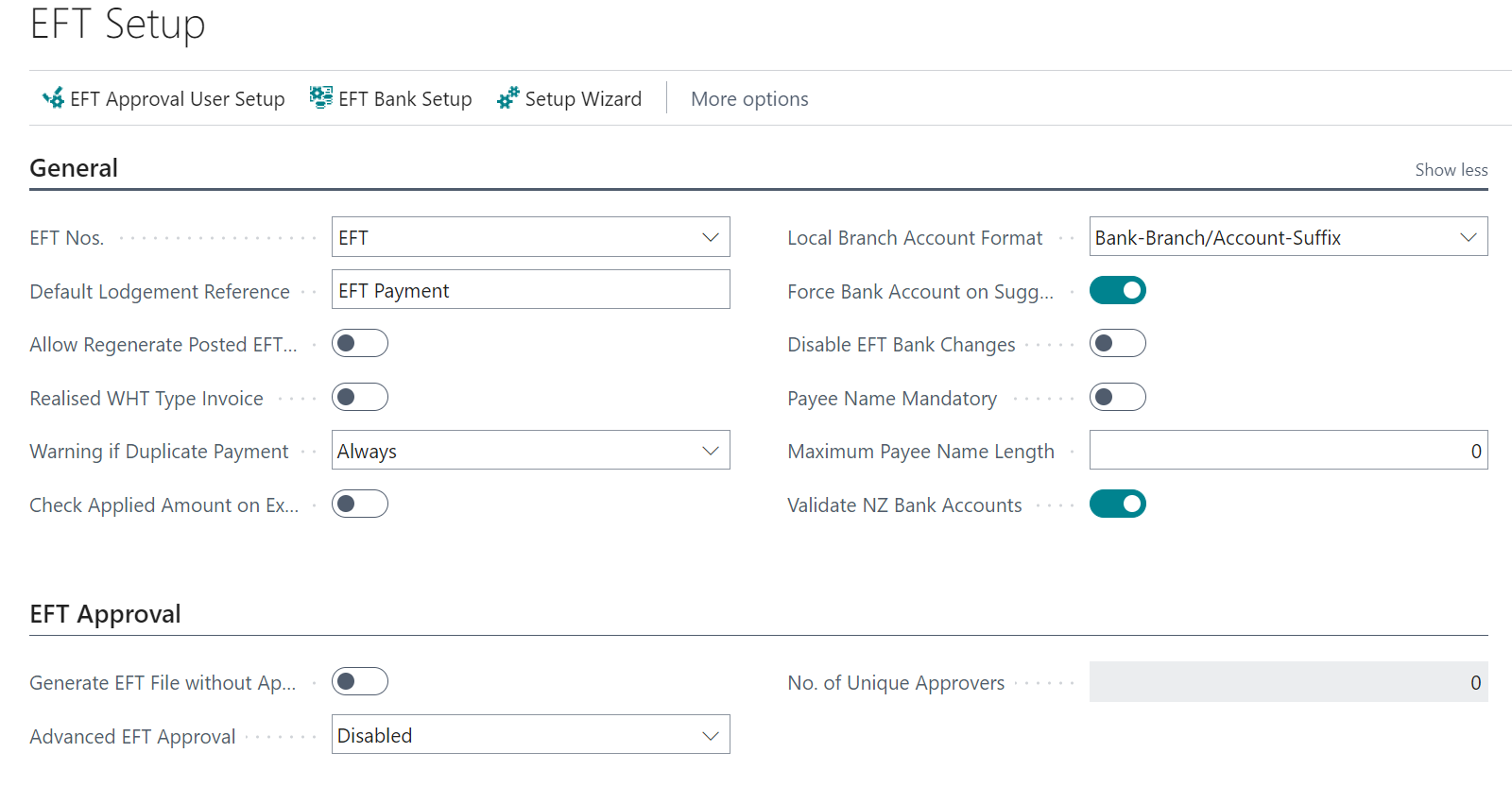
On the EFT Setup page, you specify settings that control the EFT functionality in Business Central. The EFT Setup is created automatically when the app is installed and when new companies get created.
| Field | Purpose |
|---|---|
| General | |
| EFT Nos. | Specifies the number series used for EFT Transfers. |
| Default Lodgement Reference | Specifies the Default Lodgement Reference, which is used for some banks when submitting the EFT File. |
| Allow Regenerate Posted EFT File | Specifies whether an EFT File can be regenerated when the Payment Journal has been posted. |
| Realised WHT Type Invoice | Enforce Realised WHT Type to Invoice for purchases or sales of items for all WHT business and product posting groups. |
| Warning if Duplicate Payment | Specifies that a warning will be displayed when generating an EFT if the same vendor/customer/employee receives a payment more than once in a batch. If you select always, then the warning is shown before generating the EFT Transfer as well as when opening a journal batch that has a pending EFT Transfer. |
| Check Applied Amount on Export | Specifies that the payment amount is compared to the applied amount when creating the EFT. This helps avoid paying the same entity more than once and also enforces that payments can only be made if they are applied. |
| Local Branch Account Format | Specifies the format of local bank accounts. This field determines how to split the bank account into the EFT Bank account fields. Bank-Branch/Account-Suffix – supports NZ bank account numbers with hyphens for formatting. Bank-Branch/Account – supports AU bank account numbers with a hyphen in the Branch No. Branch/Account – supports AU bank account numbers with no formatting. Branch/Account (7) Suffix (2/3) – supports NZ bank account numbers without formatting. |
| Force Bank Account on Suggest | Specifies that the customer or vendor bank account must exist when suggesting a payment for customers or vendors set up as EFT Payment. You will not be able to create an EFT transaction if there are no banking details specified, so even if you remove this validation, you will still get an error when you generate the EFT. |
| Disable EFT Bank Changes | Specifies that changes cannot be made directly to the EFT Bank, Branch, Account, and suffix fields. If this is selected, you can only update the bank branch and account number fields. The values between the EFT fields and the bank/branch are synchronized irrespective of this setting. |
| Payee Name Mandatory | Specifies that Payee Names must be specified on the vendor and customer bank Accounts. If you do not specify a value here, the program will use the customer or vendor name if the payee name is not specified. |
| Maximum Payee Name Length | Specifies the maximum value that can be specified for the payee’s name. This is to ensure that the payee’s name does not exceed the maximum your bank allows. If you do not specify this, the limit is 100 characters, which is the field length. |
| Validate NZ Bank Accounts | Specifies that Business Central will validate New Zealand bank account details on bank accounts, customer bank accounts, vendor bank accounts, and employees. |
| EFT Approval | |
| Generate EFT File without Approval Check | Specifies that an EFT File can be exported before it has been through an approval process. Only specify this if you do not want to enforce that EFT Transfers get approved before being exported. |
| Advanced EFT Approval | Specifies if Advanced EFT Approval is enabled and how the EFT Approval limits get enforced when approving EFT transactions. If you enable the Advanced EFT Approval, you will need to configure the EFT Approval limits for the EFT Approvers. |
| No. of Unique Approvers | Specifies the minimum number of unique approvers required to approve an EFT when enabled by the Advanced EFT Approval feature. If you use a workflow user group on your EFT Workflow, you must ensure that the value you specify here aligns with the number of approvers in the workflow user group. |
| Direct Credit | |
| Banking Details in Payment Journal - Direct Credit | Select this to allow banking details for refunds to be edited in the payment journal. If you select this you may consider enabling an approval workflow to enhance security. |
| Edit Customer/Vendor Bank | Select this to allow selecting a different Recipient Bank Account in the payment journal. |
| Payment Schedule Report ID (DC) | Specifies the payment schedule report that gets printed for direct credit EFT Transfers. |
| Print Payment Schedule (DC) | Specifies if you want to print the payment schedule when you generate the EFT Transfer. Select No if you don't want to print automatically, Prompt User if you want the user to decide and Always if you want it to print automatically without user intervention. |
| Remittance Advice Setup | |
| Print/Send Remittance | Specifies the value of the Print/Send Remittance field. Available options are No, Always and Prompt User. Select the Always to print or email the Remittance Advise automatically when user posting the Payments. Select Prompt User to print or email them upon user response when user posting payments. |
| EFT Particulars | Specifies the default EFT Particulars that will be copied to new vendor or customer bank accounts. |
| EFT Code | Specifies the default EFT Code that will be copied to new vendor or customer bank accounts. |
| EFT Reference | Specifies the default EFT Reference that will be copied to new vendor or customer bank accounts. |
| Direct Debit | |
| Banking Details in Cash Receipt Journal - Direct Credit | Select this to allow banking details for payments to be edited in the payment journal. If you select this you may consider enabling an approval workflow to enhance security. |
| Payment Schedule Report ID (DD) | Specifies the payment schedule report that gets printed for direct debit EFT Transfers. |
| Print Payment Schedule (DD) | Specifies if you want to print the payment schedule when you generate the EFT Transfer. Select No if you don't want to print automatically, Prompt User if you want the user to decide and Always if you want it to print automatically without user intervention. |
| Remittance Advice Setup | |
| Print/Send Remittance | Specifies the value of the Print/Send Remittance field. Available options are No, Always, and Prompt User. Select the Always to print or email the Remittance Advise automatically when the user posts the Receipts. Select Prompt User to print or email them upon user response when user posting Receipts. |
| Bank Account Defaults | |
| Default Usage - Vendor Bank | Specifies whether the Vendor Bank account will be used for Direct Credit Transfers, Direct Debit Transfers, or both. This value will be used as the default value on the Vendor Bank account card. |
| Default Usage - Customer Bank | Specifies whether the Customer Bank account will be used for Direct Credit Transfers, Direct Debit Transfers, or both. This value will be used as the default value on the Customer Bank account card. |
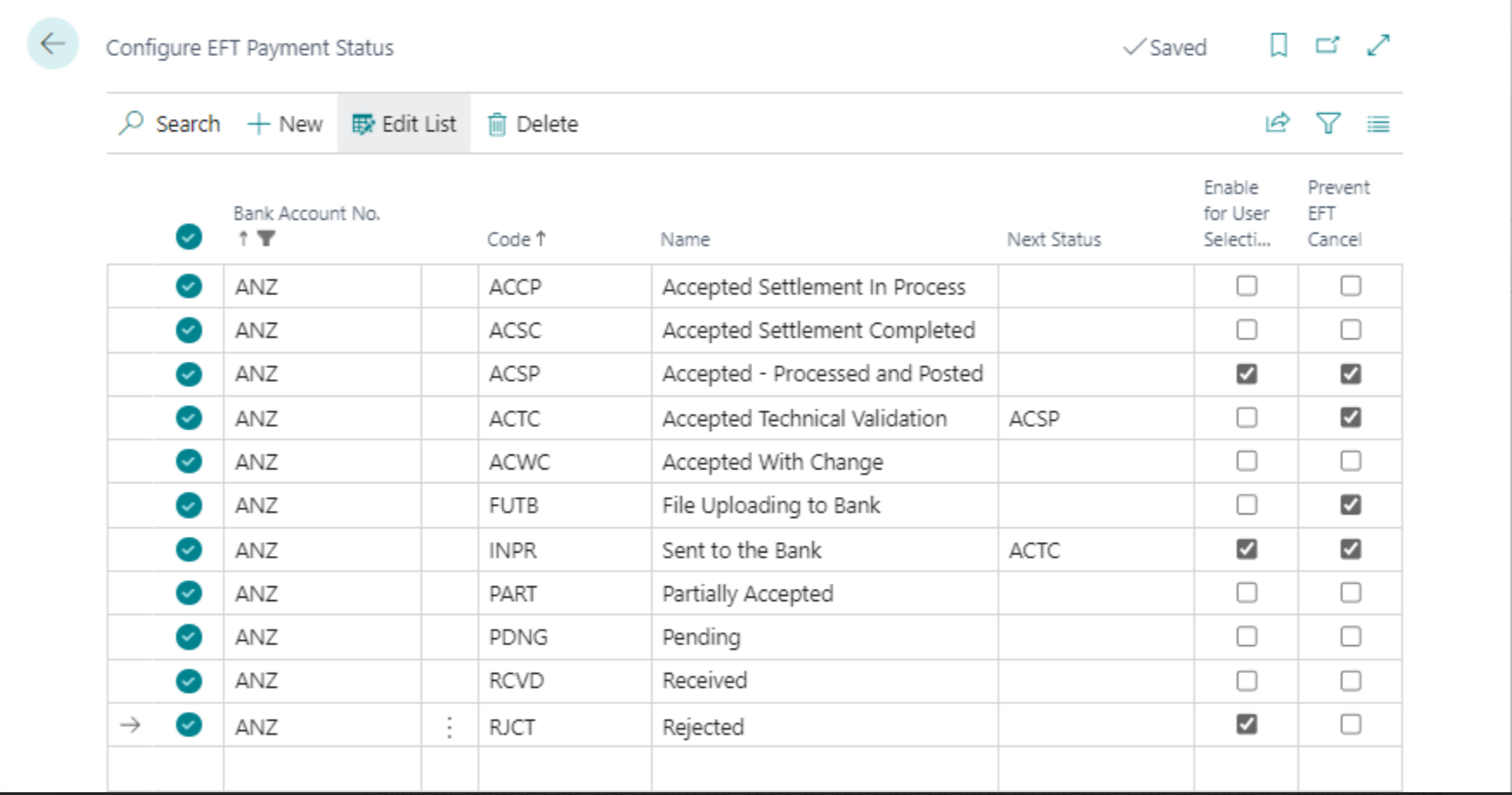
EFT Payment Status
Payment statuses are used with the host-to-host integration to interpret the responses from the bank.
Bank Statement Import Setup
You can use the Australia/New Zealand Accelerator Wizard to download the pre-configured bank statement formats.
The app relies on the standard Data Exchange Definitions functionality provided by Business Central. We have enhanced this to cover scenarios the standard functionality could not handle.
You can do the following additional set up with the Australia/New Zealand Accelerator:
- Setting up a variable text statement import with more than three record types
- Setting up a fixed text statement import
Transformation Rule for the Westpac Deskbank Fixed Text Bank Statement
All transactions on a Westpac Deskbank Fixed Text Bank Statement are positive. The sign gets derived from the transaction code. To achieve this, we provide a custom transformation rule.
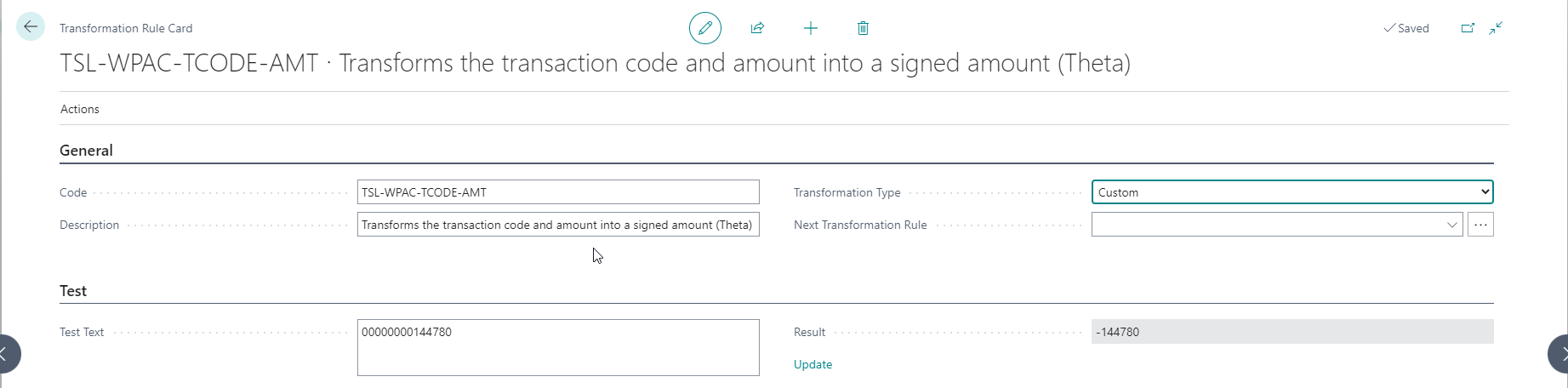
In the data exchange columns, we define the transaction code and the amount as a single column:
In the field mapping, we map this field to the amount and use the transformation rule to apply the custom logic.
EFT Bank Setup (EFT Transfers)
The EFT Bank Setup page is used to set up EFT Bank File Formats, which are used to generate the EFT File. You can create EFT File formats using the Theta Base Back Setup Wizard and create your own formats manually for banks that are not supported by default.
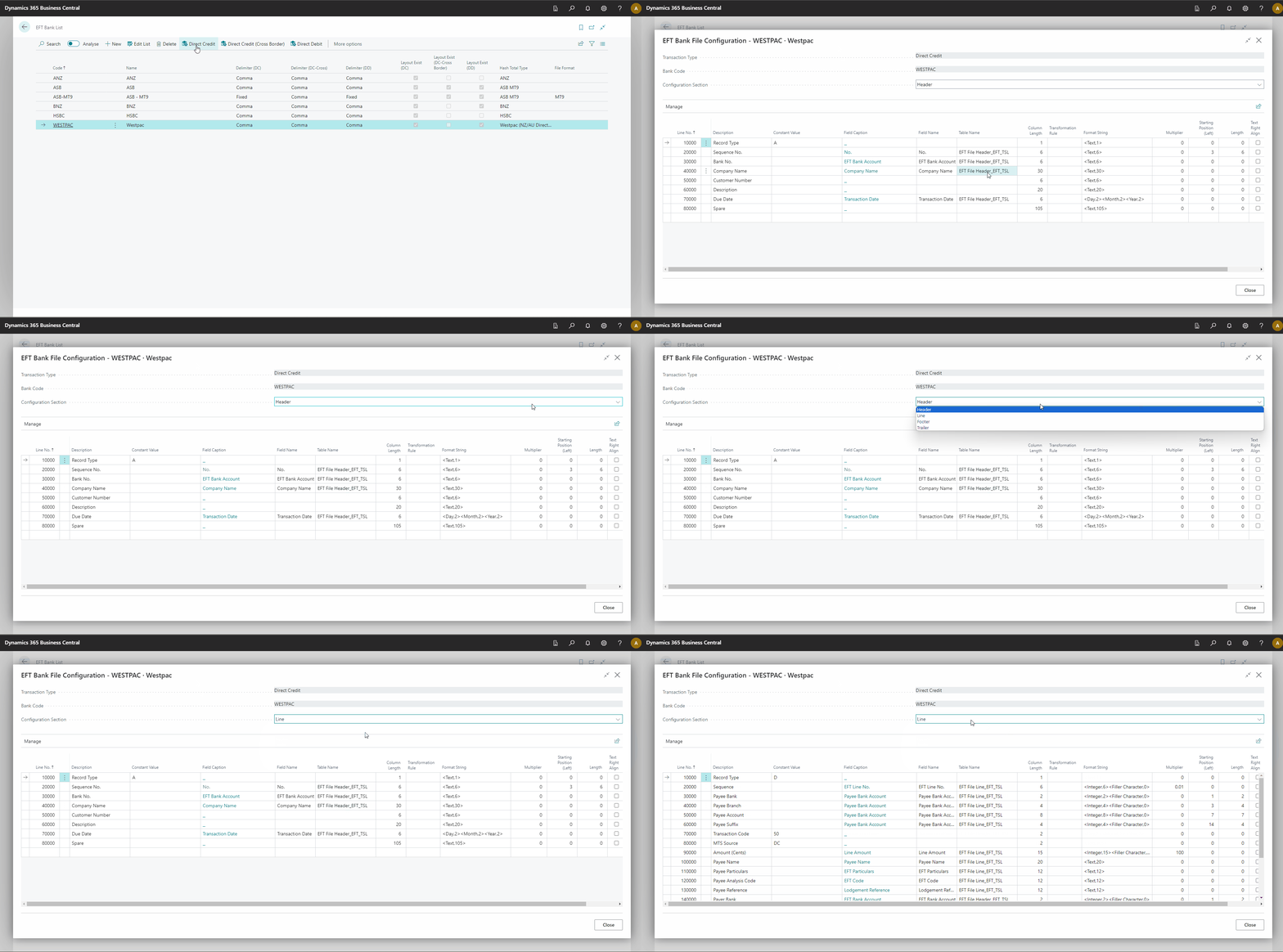
- Select the Direct Credit action to view or edit the EFT Bank File Formats for Direct Credit EFT Transfers. This format will be used when the EFT Transfer relates to local bank accounts in the company's functional currency.
- Select the Direct Credit (Cross Border) action to view or edit the EFT Bank File Formats for Direct Credit EFT Transfers. Cross-border payments are payments in a currency different from the bank's currency or payments into a bank account domiciled in a foreign country. You must enable cross-border payments on the bank account card.
- Select the Direct Debit action to view or edit the EFT Bank File Formats for Direct Debit EFT Transfers.

The cross-border EFT file format is usually different from the local EFT file format.
EFT Bank File Configuration
The Direct Credit, Direct Credit (Cross Border) and Direct Debit actions open the EFT Bank File Configuration. The animation below shows how to open the page and switch between record types.
| Field | Purpose |
|---|---|
| Line No. | Specifies the line number, an auto-generated reference to this record. |
| Description | Specifies a description of the value that should be exported. |
| Concatenation Group Code | Specifies a reference to a group of fields that must be concatenated to form a single export value. This enables combining the values of multiple fields or constant values into one export value. Refer to the note below for additional information. |
| Type | Specifies the value of the Type field. |
| Constant Value | Specifies the value constant value that should be exported. |
| Table Caption | Specifies the Table Caption of the table from where the field should be exported. |
| Field Caption | Specifies the field caption of the field that will be exported. |
| Field Name | Specifies the Field Name that must be exported. |
| Table Name | Specifies Table Name of the table from where the field is exported. |
| Column Length | Specifies the maximum length of the field that should be exported. |
| Transformation Rule | Specifies the value of the transformation rule field. The transformation rule is applied to the field value before any other formatting. |
| Format String | Specifies the AL format string that should be used to format the value before exporting it. |
| Multiplier | Specifies a multiplier that should be applied to an amount field. |
| Copy Str From Position | Specifies the position to start copying a string. |
| Copy Str Length | Specifies the length of the string to copy. |
| Uppercase | Specifies that the value should be exported as uppercase. |
| Text Right Align | Specifies that the value should be right aligned. |
| Pad Character | Specifies the Pad Character to use when a text field is right aligned. If you do not specify a value here, it will be filled with a space. |
The field Concatenation Group Code allows fields (or constants) defined on Bank File Configuration Lines to be concatenated. Concatenation rules are as follows: Manipulation rules are divided into two sets
- Format String, Multiplier, Starting Position + Length
- Transformation Rule, Column Length, Text Right Align + Pad Character.
The first set is applied to individual fields, and the second set is to the result of concatenation.
New Zealand Bank Account Validation Setup
The New Zealand Bank Account Validation feature includes two additional tables that get set up automatically on the installation of the app. You can access these pages from the EFT Setup Card.
NZ Bank Account Validation Setup
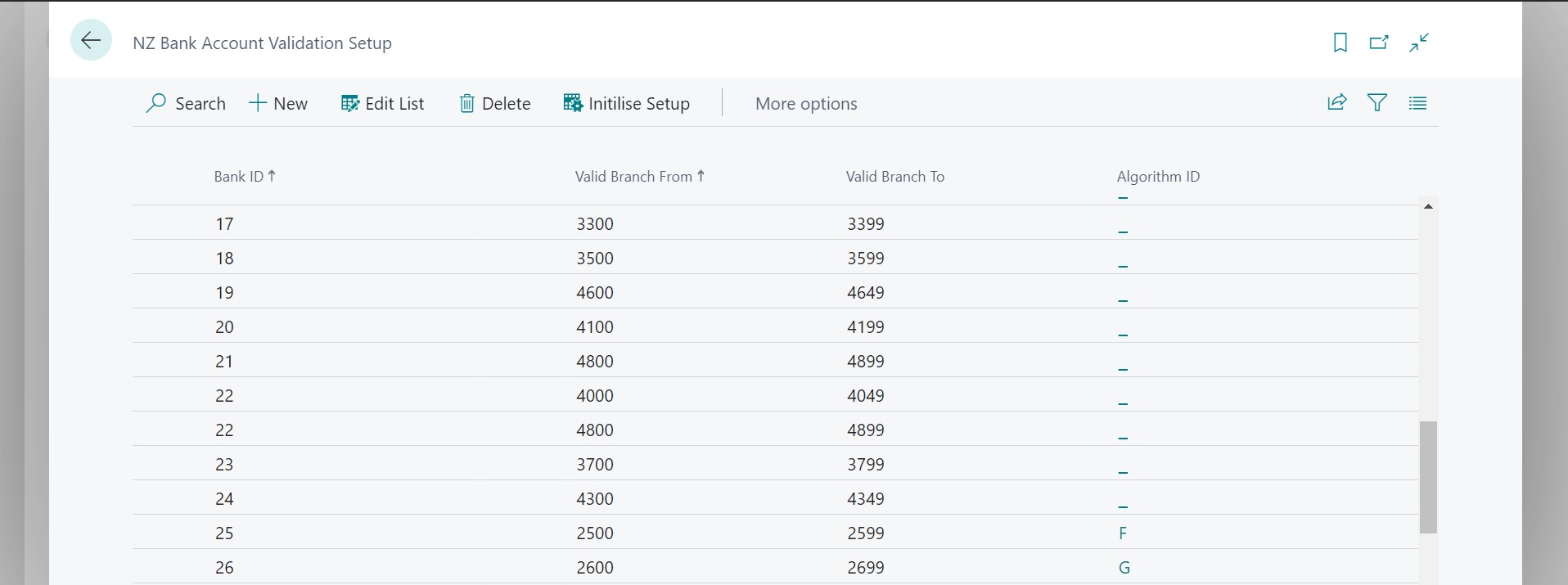
This page records every bank and contains the valid ranges for branch and account.
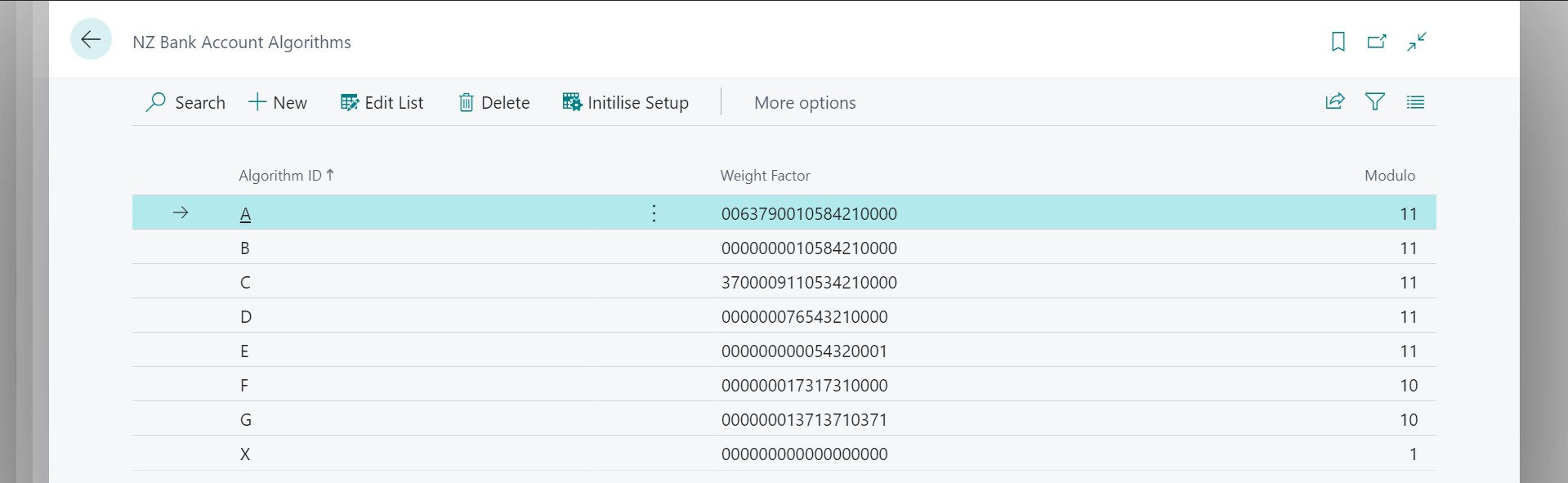
NZ Bank Account Algorithms
This page contains the algorithms that get used to validate the account details.