Setup
Generic Workflow Setup
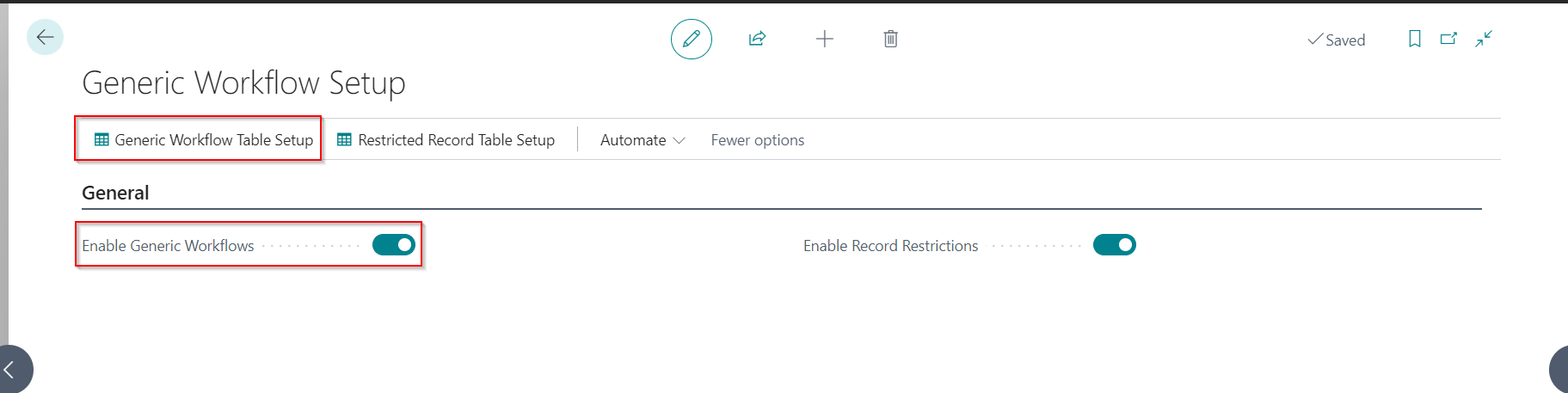
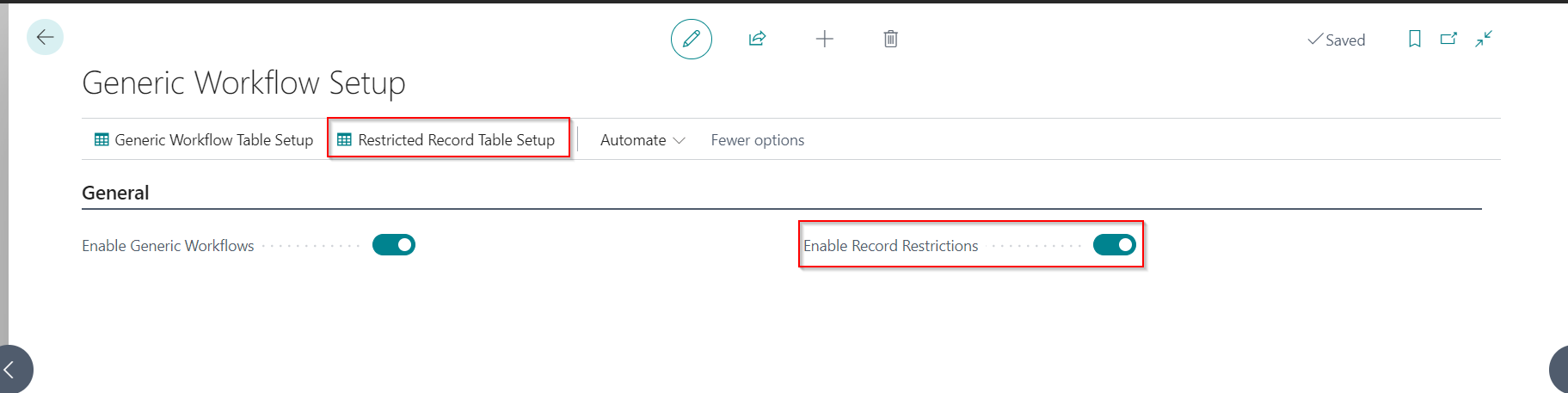
You specify which features you want to use on the Generic Workflow Setup page.

| Field | Purpose |
|---|---|
| General | |
| Enable Generic Workflows | Specifies that the generic workflow is enabled. This feature allows you to create workflow templates for any table. |
| Enable Record Restrictions | Specifies if the Record Restrictions feature is enabled. This feature allows you to set up modification restrictions for pre-defined fields. For example, you can prevent changes to a purchase order line''s description once approved. |
This is a global setting that can enable/disable all generic workflows.
Enable Generic Workflows
Once the generic workflow feature is enabled, you can use the Generic Workflow Table Setup action to set up the table for which you want to create a workflow template.
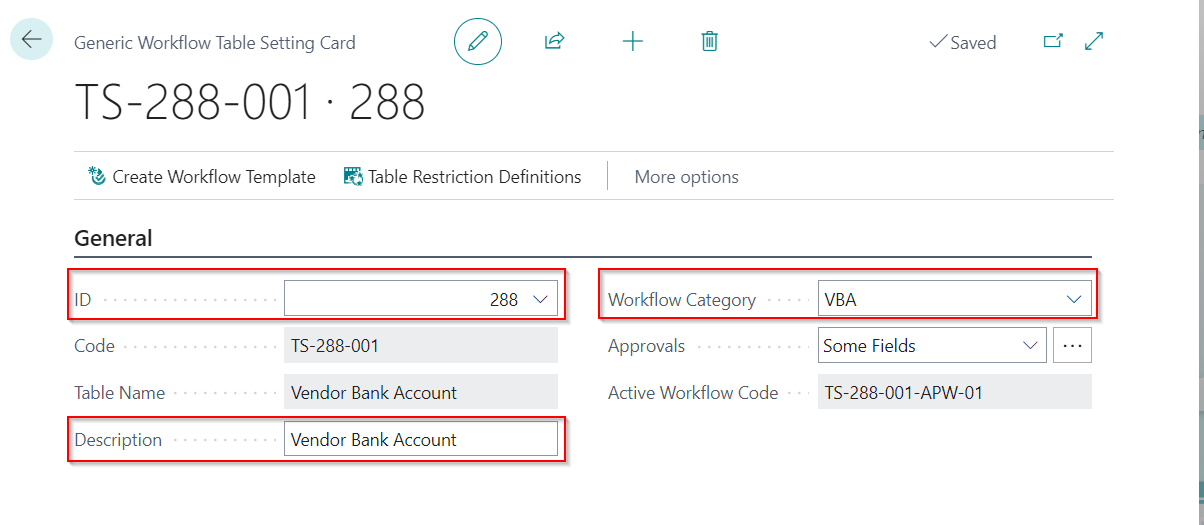
Enter the table details, workflow description and category.
| Field | Purpose |
|---|---|
| General | |
| ID | Specifies the ID of the table. |
| Code | Specifies the workflow code (auto-generated). |
| Table Name | Specifies the name of the table. |
| Description | Specifies the workflow description. |
| Workflow Category | Specifies the workflow category. |
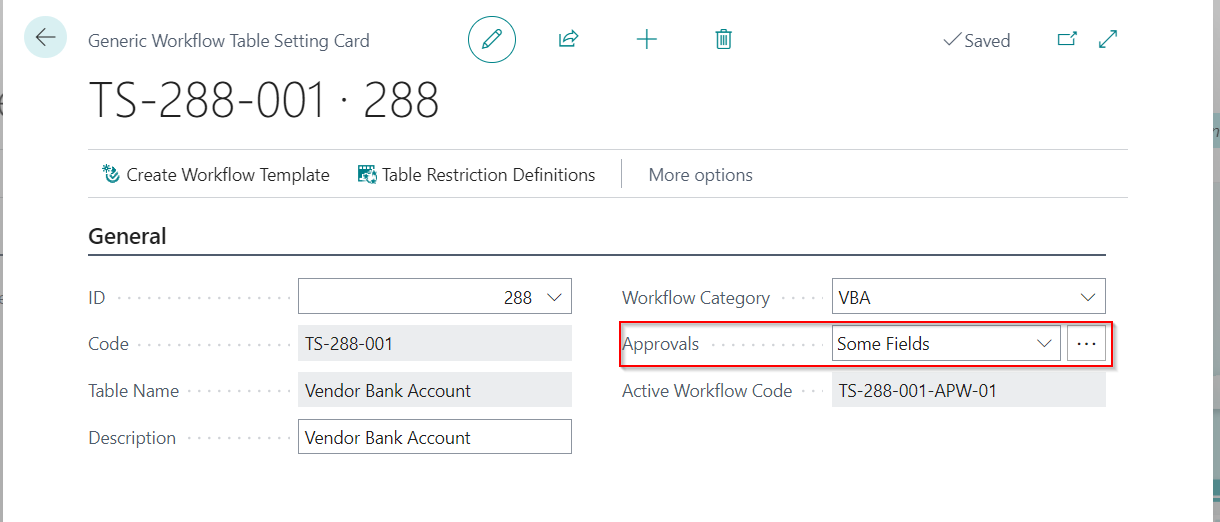
| Approvals | Specify if the approval workflow is triggered for all or some selected fields. |
| Active Workflow Code | Specifies the active workflow code for the table. |
Click the assist button on approvals to select/update the fields that require approval.
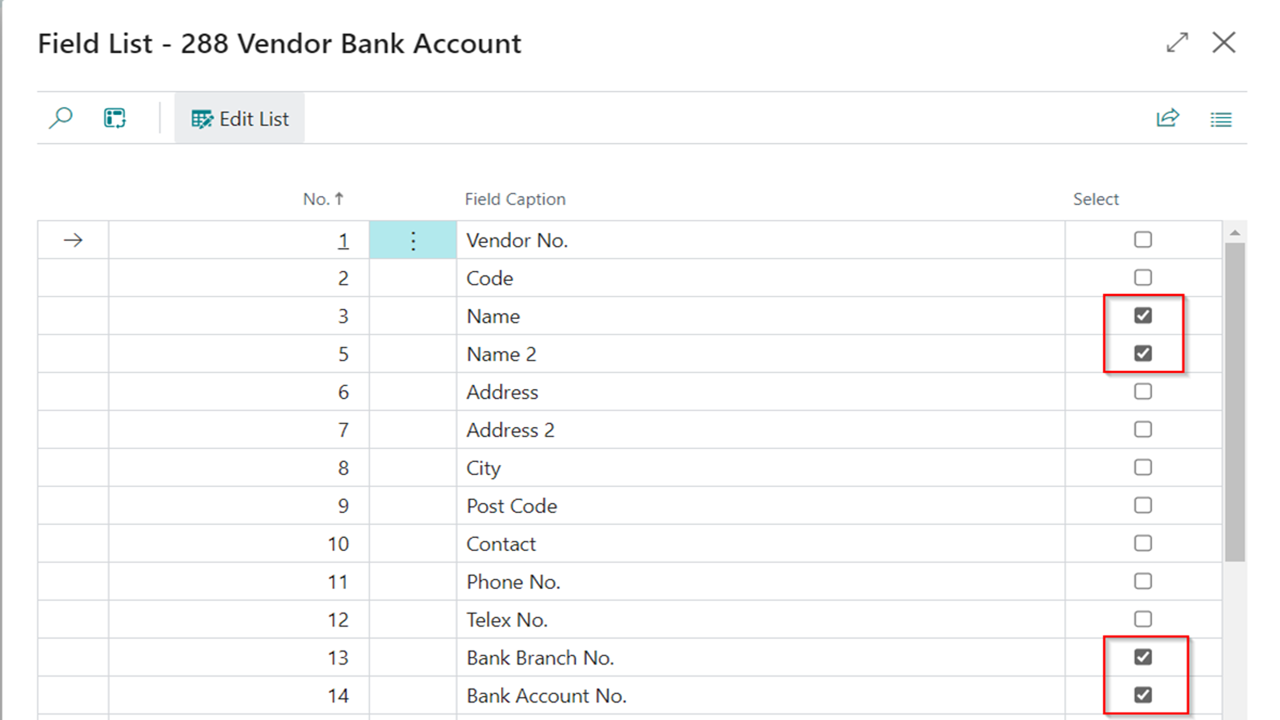
Select the fields from the field list.
| Field | Purpose |
|---|---|
| General | |
| No. | Specifies the field number. |
| Field Caption | Specifies the field caption. |
| Select | Specify if the approval workflow is required for the field. |
Once the fields are selected, click on the Create Workflow Template action to create a workflow template for the table.
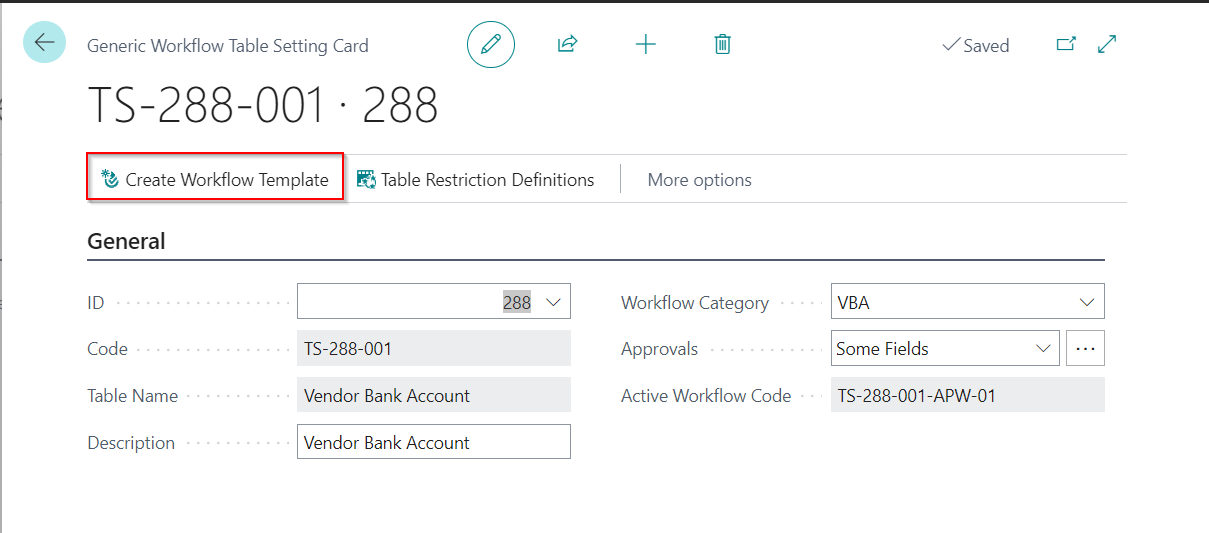
You can then use the workflow template to create a new workflow.
Enable Record Restrictions
Once the record restrictions are enabled, you can set up the field restriction for a table using the Restricted Record Table Setup action.
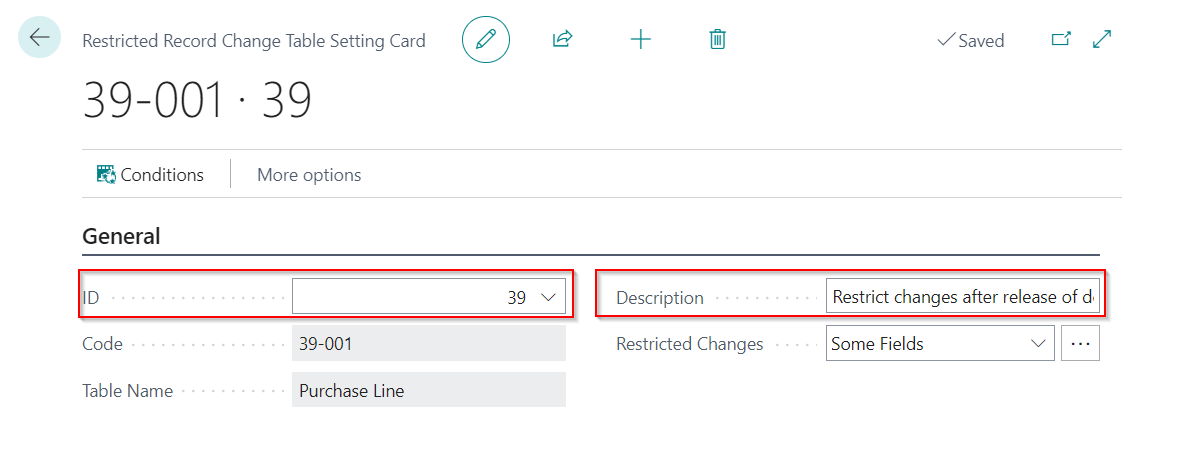
Enter the table details and description.
Click the assist button on restricted changes to select/update the fields that must be restricted.
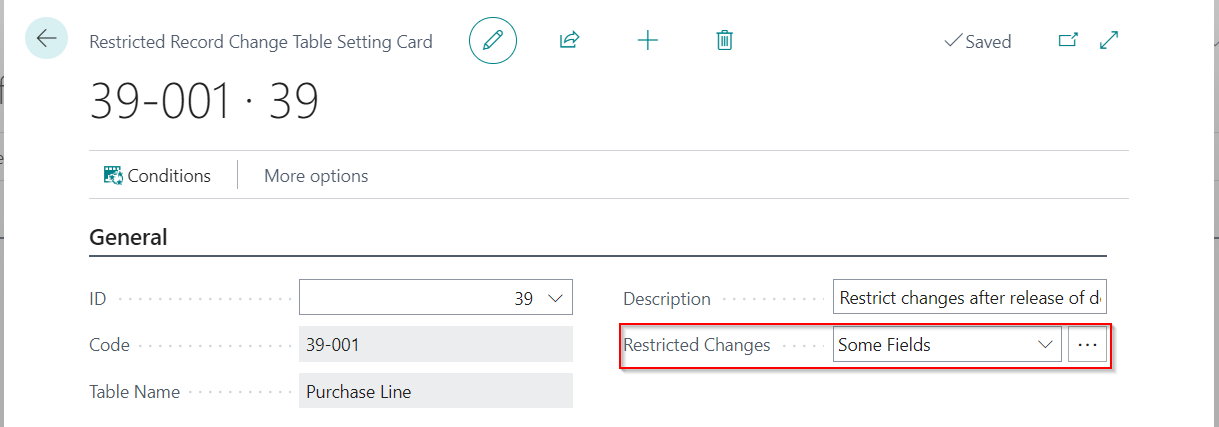
Select the fields from the field list.
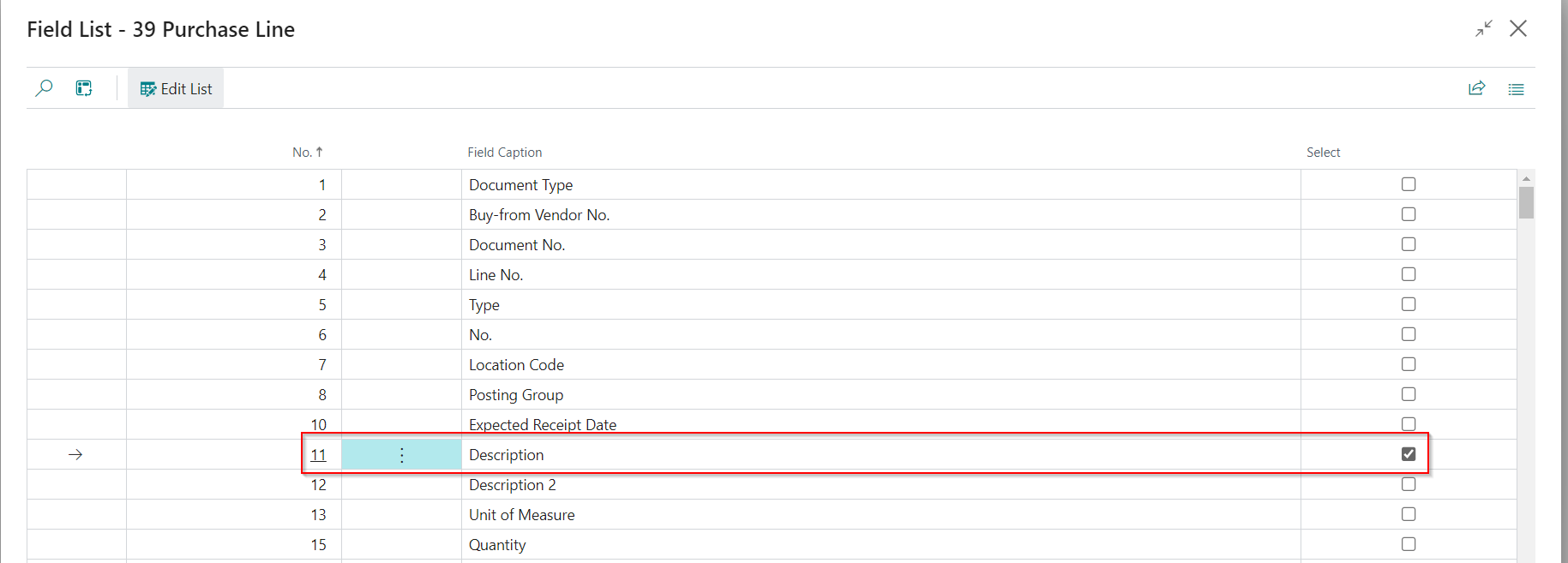
| Field | Purpose |
|---|---|
| General | |
| No. | Specifies the field number. |
| Field Caption | Specifies the field caption. |
| Select | Specify whether to include the field in the restricted list. |
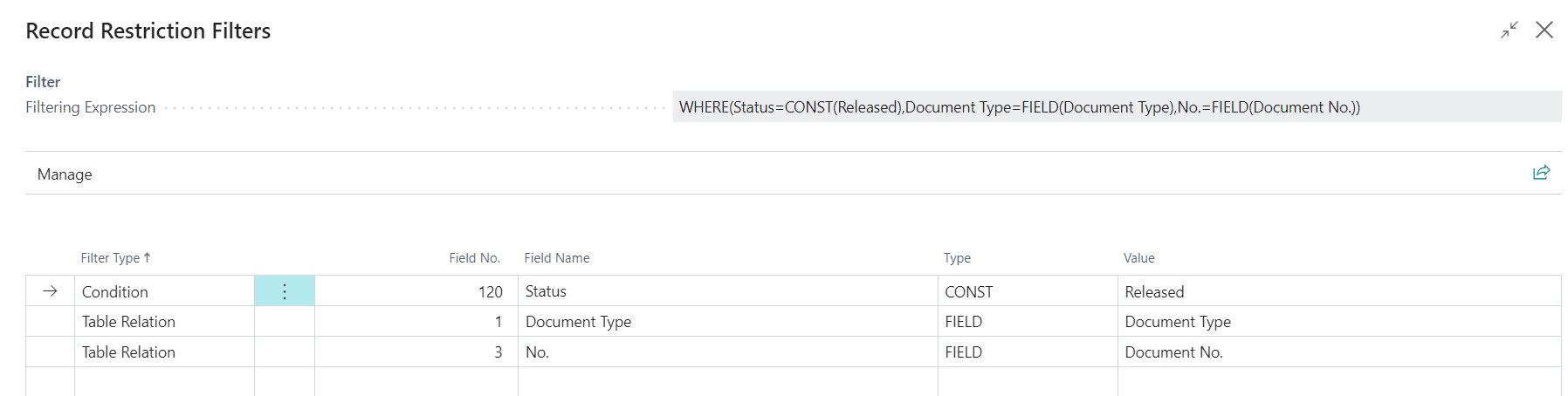
Using the record restriction filters, you can set conditions and filters for field restriction. For example, changing the purchase line description is restricted once the purchase order is released.
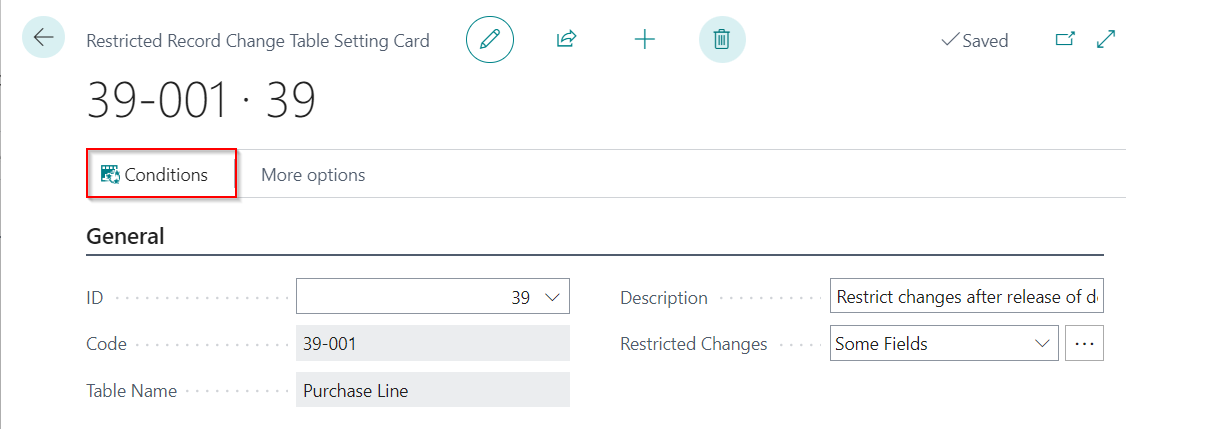
Add the table, conditions, table relations and filters.

Upgrade instructions
Migrating from the Per-Tenant version
We have provided a migration tool to migrate your data from the per-tenant version to the AppSource version of the app. This tool is only available to Theta consultants.
Prerequisites
- Generic Workflow - PTE - version
26.1.0.0or greater. - Migrate PTE Generic Workflow to AppSource - version
27.0.1.0or greater. - Refactor any custom extensions dependent on the Generic Workflow - PTE. In most cases, the refactoring will be straightforward as we have maintained feature parity between the two editions of this app.
Process - Business Central
- Please ensure you run through this process in a sandbox environment and perform the necessary testing before proceeding to do this in production.
- It is important to follow these instructions in sequence and that you do not uninstall the Generic Workflow - PTE before you install the AppSource version.
- Upgrade to the latest Generic Workflow - PTE version.
- Install the Generic Workflow from AppSource.
- Install the Migrate PTE Generic Workflow to AppSource app. The data migration happens during the installation process and runs for all companies.
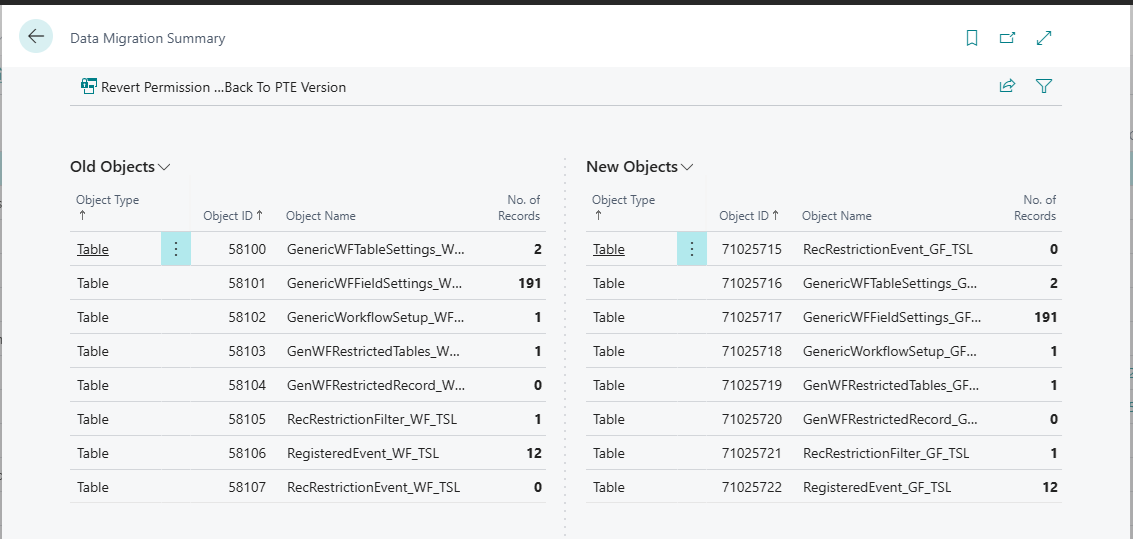
- Open the Data Migration Summary to perform a high-level check of the data migration. You can check this in all companies if you like, but you do not need to do this.
 _
_
 _
_
- Uninstall the Migrate PTE Generic Workflow to AppSource app. Do not unpublish the app yet.
- Uninstall the Generic Workflow - PTE app. Do not unpublish the app yet. This will also uninstall any custom extensions dependent on the Generic Workflow - PTE (if applicable).
- If applicable, install custom extensions dependent on the Generic Workflow.
- Perform smoke testing to ensure the extension works as expected.
Rollback
The process described has a fail-safe, as we have not deleted the data from the PTE at this point (please note exclusions below). If you encounter any issues, you can follow these steps to revert to the PTE version:
- Reinstall the Generic Workflow - PTE app and any dependent apps.
- Reinstall the Migrate PTE Generic Workflow to AppSource app.
- Open the the Data Migration Summary and select the Revert Permissions Back to PTE action.
- Uninstall and unpublish the Migrate PTE Generic Workflow to AppSource app.
- Uninstall the Generic Workflow AppSource app. :::
Final Steps
After carrying out the steps below, you cannot revert to the Per-Tenant version of the app. Only commence with these steps once you are confident that the migration has been successful.
As a final step, once you have validated the migration outcome, you can remove all the data related to the Generic Workflow - PTE app. To do this:
- Reinstall the Generic Workflow - PTE app.
- Unpublish the Migrate PTE Generic Workflow to AppSource app.
- Uninstall the Generic Workflow - PTE app and specify to delete extension data.
- Unpublish the Generic Workflow - PTE app.