Processing
This section shows you how to use the app once you have set it up. You can find setup information here, including help with assisted setup if you have not already done setup.
Synchronisation Example
In this scenario, we change the Email address of customer 30000 in the Cronus International Ltd. master company, which gets synchronised to the Cronus Group company.
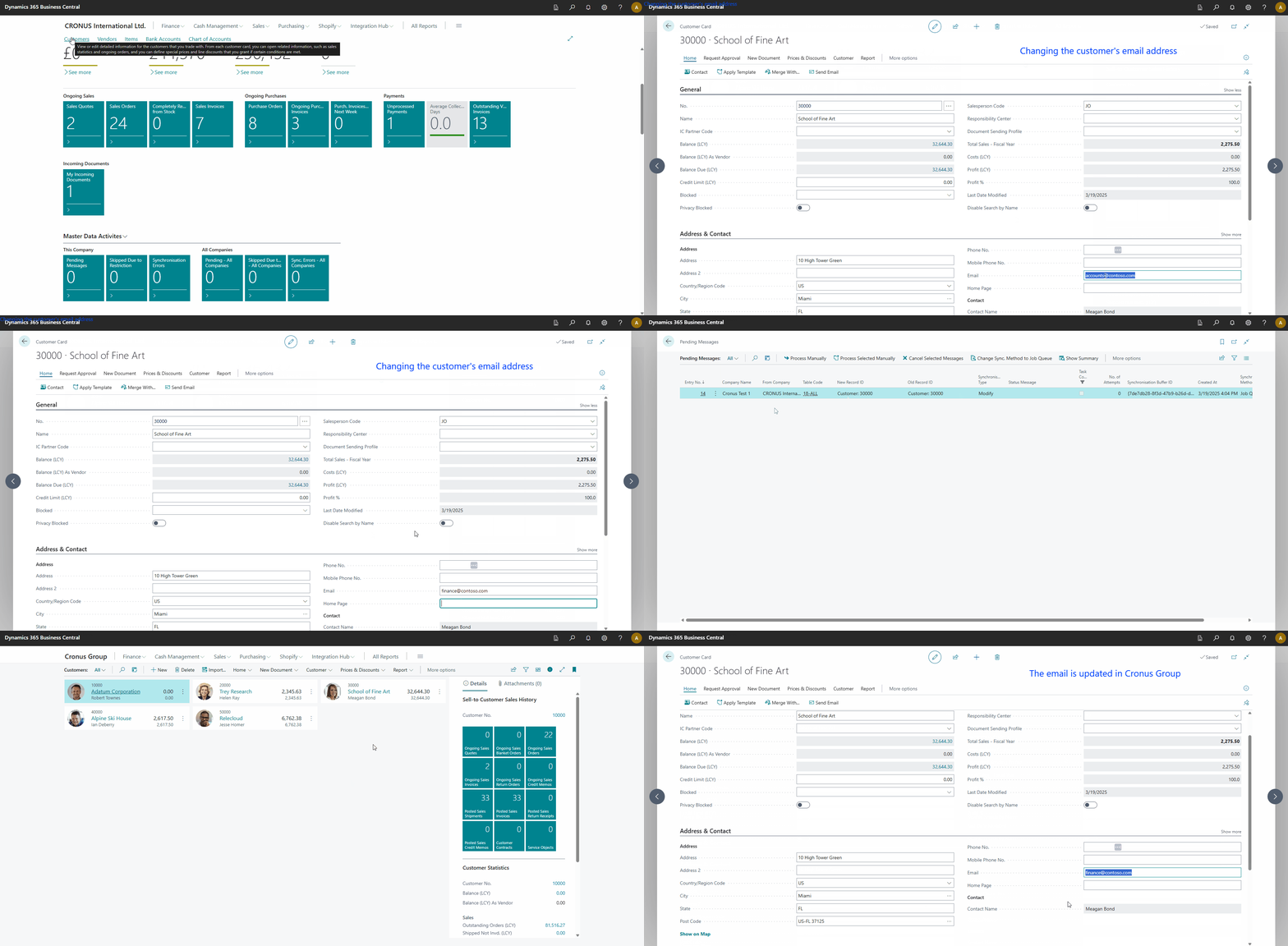
The animation shows:
- We updated an email address on one of the customers in the Cronus International Ltd. company.
- This update created a message in the synchronisation queue.
- As we immediately moved to the Cronus Group company, the message had not yet been processed.
- We waited a short while, and then we saw there were no pending messages.
- We opened the same customer in Cronus Group and saw that the update had occurred.
Master Data Activities
The app adds the Master Data Activities cue to the following role centres:
- Accounting Manager
- Accountant
- Administrator
- Business Manager
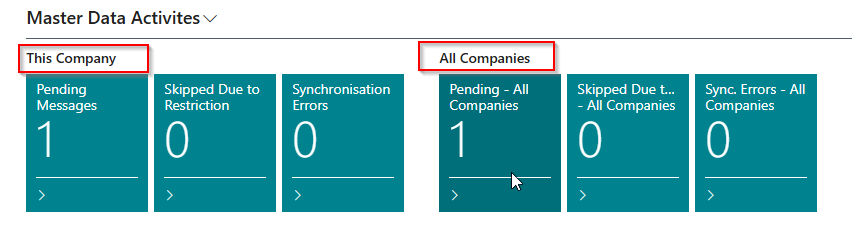
You will notice that you can see the status of the current company and all companies from the same place. This allows you to identify potential issues quickly. There are three classifications:
- Pending Messages are messages that still need to be synchronised.
- Skipped Due to Restriction are messages that have changed but will only synchronise once a record restriction is removed. The record restriction is associated with approvals.
- Synchronisation Errors are failed messages that must be investigated. This includes tasks that have exceeded their maximum retry attempts or tasks that are suspended due to an unlicensed app to prevent continuous errors.
Selecting any of the tiles will open the Pending Messages page.
Pending Messages
This page allows you to see details about messages that are pending to be synchronised.

Actions
Process Manually
Processes the current message manually instead of waiting for the background task. This is commonly used while testing or when troubleshooting. You can only process messages if you log into the destination company. Refer here for tips on handling common errors.
Process Selected Manually
Processes the selected messages manually instead of waiting for the background task. This is commonly used while testing or when troubleshooting.
Cancel Selected Messages
Cancels the selected messages to prevent synchronisation.
Change Sync. Method to Job Queue
Changes the synchronisation method for the selected messages to Job Queue. You would use this action if you set up a master table to synchronise immediately and the records have not been synchronised due to exceeding operational limits.
We recommend using the default option to synchronise, which is a job queue, as this is less likely to cause performance issues or generate too many scheduled tasks.
Reset Retry Counters
Resets the retry counters for selected messages. This action is useful when:
- A task has been suspended after reaching its maximum retry attempts and you want to retry it again after fixing the underlying issue.
- You want to reset the exponential backoff delay to start fresh with the initial retry delay.
- Multiple messages have encountered temporary errors and you want to retry them immediately.
When you select this action, the app will:
- Prompt you to confirm the number of selected tasks.
- Reset all retry counters (attempt count, backoff step, retry delay, earliest synchronisation time).
- Clear any stored error messages.
- Change the status from Suspended back to Pending for suspended tasks.
- Create a log entry recording the bulk reset operation.
This action can be performed on multiple messages simultaneously by selecting them in the list before triggering the action.
Show Summary per Company
This action opens the Master Data Synchronisation Summary Per Company page.
Show Summary per Table Code
This action opens the Master Data Synchronisation Status Per Table page, showing synchronisation status grouped by table.
Show Summary per Company and Table
This action opens the Master Data Synchronisation Status Per Company and Table page, showing a combined breakdown of pending messages and errors for each company and table combination.
Master Data Synchronisation Summary Per Company
This page is available from the Pending Messages and Master Data Tables pages and shows you the synchronisation status per company.
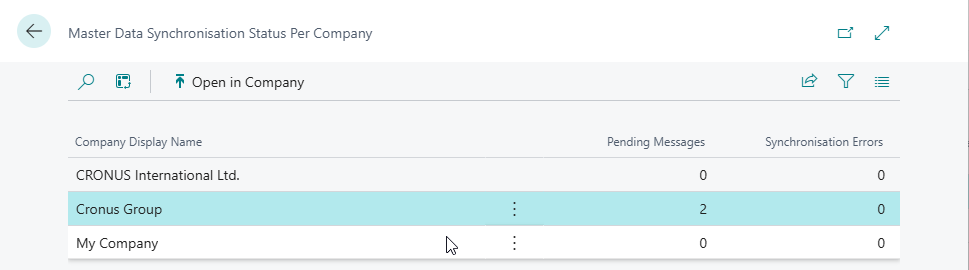
Select the Open in Company action to view/process messages in any specific company.
Master Data Synchronisation Status Per Table
This page is available from the Pending Messages and Master Data Tables pages and shows you the synchronisation status grouped by table. Use this view to quickly identify which tables have the most pending messages or errors across all companies.
Select Status Summary per Company to drill into the per-company detail for a specific table.
Master Data Synchronisation Status Per Company and Table
This page provides the most granular summary view, showing pending messages and errors broken down by both company and table in a single list. Each row represents a unique combination of a destination company and a synchronised table.
This is useful when you want to pinpoint exactly which table is causing issues in a specific company, without having to navigate between the per-company and per-table views.
Select the Open in Company action to open the pending messages for the selected company directly.
Delete All Pending Messages
This action is available on the Master Data Tables list and the Master Data Table Card. It permanently deletes all pending messages and synchronisation records for the selected table in a single operation.
This is significantly faster than using Cancel Selected Messages on the Pending Messages page, which processes records individually. Use this action when you need to clear large volumes of messages quickly, for example after testing an initial synchronisation.
This action only deletes records originating from the current company. A confirmation prompt shows the exact number of pending messages and synchronisation records that will be deleted before proceeding. This cannot be undone.
Master Data Synchronisation Logs
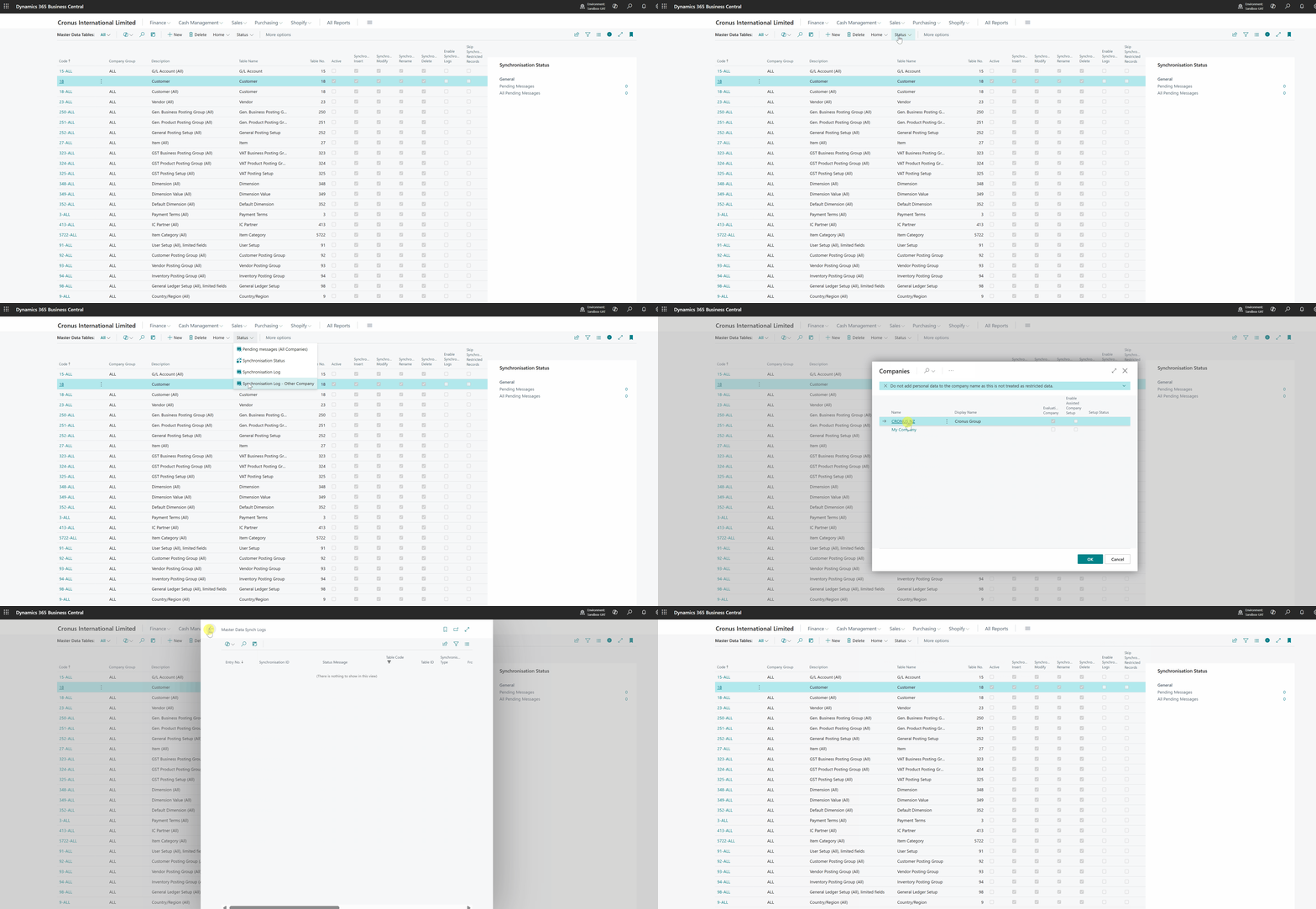
This page shows all Synchronisation Logs. By default, the app will only log errors, but you can explicitly enable synchronisation logs per table to assist with troubleshooting. You can use retention policies to limit the data you store here. You can access this page from the Master Data Tables page.
You will notice that you can access a log for the current company and another company, as in the animation below.
View Status from Master Data Tables
The Master Data Tables page includes actions to check the synchronisation status per company and per table.

You can also view a fact box showing the pending messages for the current table and the pending ones for all tables.
Automatic Error Handling
The app implements intelligent retry logic with exponential backoff to handle transient errors automatically. When a synchronisation task fails:
- Error Capture: The error message is captured and stored with the pending message.
- Backoff Calculation: The app calculates the next retry delay using exponential backoff based on the Retry Configuration.
- Retry Scheduling: The task is scheduled to retry after the calculated delay.
- Max Attempts Check: If the task has reached its maximum retry attempts (if configured), it is suspended and requires manual intervention.
Retry Status
You can view retry information for each pending message, including:
- Current Retry Delay: The current delay between retry attempts.
- Earliest Synchronisation Time: The earliest time when the task can be processed. This applies to both initial and retry attempts. Actual processing depends on job queue schedule.
- No. of Attempts: How many times the task has been attempted.
- Last Error Text: The most recent error message.
- Retry Configuration Code: Which retry configuration is being used.
Messages that have exceeded their maximum retry attempts will have a status of Suspended and will not be processed automatically. You can use the Reset Retry Counters action to retry these messages after resolving the underlying issue.
Missing Source Record
The app fetches data from the source company and then tries inserting, modifying, renaming, or deleting the record in the destination company. Suppose the record is not found in the source company, then the following applies:
- Insert and Modify - For these operations, we assume the exception is caused by the record being deleted immediately after the record update by the source company. - The app will automatically skip the message if the source record no longer exists. - An event will be logged in the Master Data Synchronisation Log. - Although the event is logged, it will not show as a pending message in the master data activities as the app assumes there is nothing else to do.
- Rename - The message will be flagged as an error if the source record no longer exists. - Here, the app requires a user because the rename action is more complex and will require investigation to ensure the data is correctly synchronised.
Missing Destination Record
If a delete operation is performed and the record does not exist in the destination company, the app will automatically skip the message. An event will be logged in the Master Data Synchronisation Log table. Although the event is logged, it will not show as a pending message in the master data activities as the app assumes there is nothing else to do.
Manual Error Handling
When synchronising data between companies, it is possible to encounter errors related to the data as the app tries to synchronise it. The are several common causes, which we discuss how to handle in this section.
Related record is missing
Example: Customer Posting Group LOCAL does not exist...
These are the most common issues and can quickly be addressed. The most common cause is that the related record does not exist and must be created.
- You must add the record to address the immediate issue and synchronise the data.
- As a long-term solution, consider adding the related table as a table that you want to synchronise. Once the record is in the destination company, the app should be able to process the message.
Some environments may be more complex - for example, you might be synchronising data between companies that operate in different regions, and they have different posting setups by design. Therefore, it is valid that the related record does not exist by design, and you must transform the value. It is possible to implement rules-based transformations. You can read more about this here.
Suspended Tasks
Tasks are marked as Suspended and will not be processed automatically in the following scenarios:
- Max Retry Attempts Exceeded: The task has exceeded its maximum retry attempts and requires manual intervention.
- Unlicensed App: The app does not have a valid subscription, preventing automatic processing to avoid continuous errors.
To address suspended tasks due to max retry attempts:
- Review the Last Error Text field to understand why the task failed.
- Fix the underlying issue (e.g., create missing related records, correct data, adjust configuration).
- Use the Reset Retry Counters action to reset the task and retry it.
To address suspended tasks due to licensing, ensure you have an active subscription for the app.
Suspended tasks remain in the pending messages list to ensure visibility and prevent data loss. Unlike automatic cleanup of completed tasks, suspended tasks require manual review and intervention.
Pending Messages are not Processing
When messages do not show an error but are not being processed, the most likely causes are:
- Job Queue Not Running: The job queue may not be running in the destination company.
- Retry Delay: The message may be waiting for its earliest synchronisation time (check the Earliest Synchronisation Time field).
Even if a message's Earliest Synchronisation Time has passed, the message will only be processed when the job queue next runs. The default job queue runs every 5 minutes, so messages may experience delays beyond their configured retry delay. For example, a 60-second retry delay may actually take 5 minutes if the job queue runs on a 5-minute schedule.
The app includes a feature to create the initial job queue, which you can read about here.
If the job queues have been configured, they are likely on hold or in an error state. These issues can occur due to system updates or high processing volumes. If the job queue enters an error state, it is possible to configure the job queue to retry, as often these errors are transient and resolve themselves (e.g. locking issues). However, there are other causes, and you need to investigate them. Our Administration Tools app could help you monitor and manage job queues, which is recommended if you have many companies.
Batch Synchronisation
This process allows you to synchronise master data across multiple companies in batch mode. It is useful when synchronising data to a new company or when specific master tables need to be synchronised outside regular working hours.
You can access this feature from the Master Data Tables page by selecting the Batch Synchronisation action.
The following table describes the options available in the Batch Synchronisation process and their tooltips:
| Option | Description |
|---|---|
| Companies | Specifies a filter on the companies to include in the synchronisation. This filter is in addition to any filters already specified by the master data table company selection (company group). |
| Synchronisation Type | Specifies whether to run the synchronisation as an insert or modify operation. If using a time-based filter, the app will apply the filter to the System Created Date/Time for Insert and the System Modified Date/Time for Modify. The main purpose of this setting is for scenarios where you might want to synchronise inserts to ensure values are available in each company but handle modifications differently (e.g., with a different configuration). |
| Created/Modified Date Calculation | Specifies the date calculation formula to filter records for synchronisation. |
| Created/Modified Minutes | Specifies the number of minutes to filter records for synchronisation. |
| From Date/Time | Specifies the starting date and time to filter records for synchronisation. When using the From/To DateTime filter, it is possible to specify only the From time, only the To time, or both times. |
| To Date/Time | Specifies the ending date and time to filter records for synchronisation. |
Each option is designed to provide flexibility in filtering and synchronising data across companies.
Validation
The Batch Synchronisation process validates the following before processing each master data table:
- Active Table: The master data table must be active. If a table is not active, the process will raise an error advising you to activate it before running the batch.
- Company Group: If you have selected specific companies to synchronise, the process will verify that at least one of the selected companies is configured in the company group associated with the master data table. If none of the selected companies are part of the table's company group, the process will raise an error. This ensures that data is only synchronised to companies that are configured to receive it.
Workflow Synchronisation
Workflow changes are synchronised when the Workflow record itself is updated. Consequently, the app supports synchronisation both when a workflow is disabled and when it is re-enabled. Since workflow steps, responses, and other elements can only be changed when the workflow is disabled, changes to these elements will only be synchronised when the workflow is re-enabled or the workflow record is explicitly updated.