Bank Statement Import
Business Value
Reconciling bank statements is a critical part of financial management. When you receive bank statement data from your bank or a third-party system, manually entering each transaction is time-consuming and error-prone.
Possible Scenarios
Here are some scenarios where you might use this feature:
- Importing monthly or daily bank statements from your bank’s online portal.
- Reconciling transactions from payment processors (e.g., Stripe, PayPal) that provide downloadable statements (typically in a comma-separated file or in an Excel format).
- Automating reconciliation for high-volume transaction accounts.
Feature Details
Whilst it is possible to use data exchange definitions to import bank statements as a standard feature, there are limitations on the data exchange definition that require some source files to be manually manipulated before importing. The Bank Statement Import feature allows you to import a bank statement or payment processor file directly from Excel or Text, streamlining reconciliation and reducing manual effort. After importing, the app can also automatically run the matching functions.
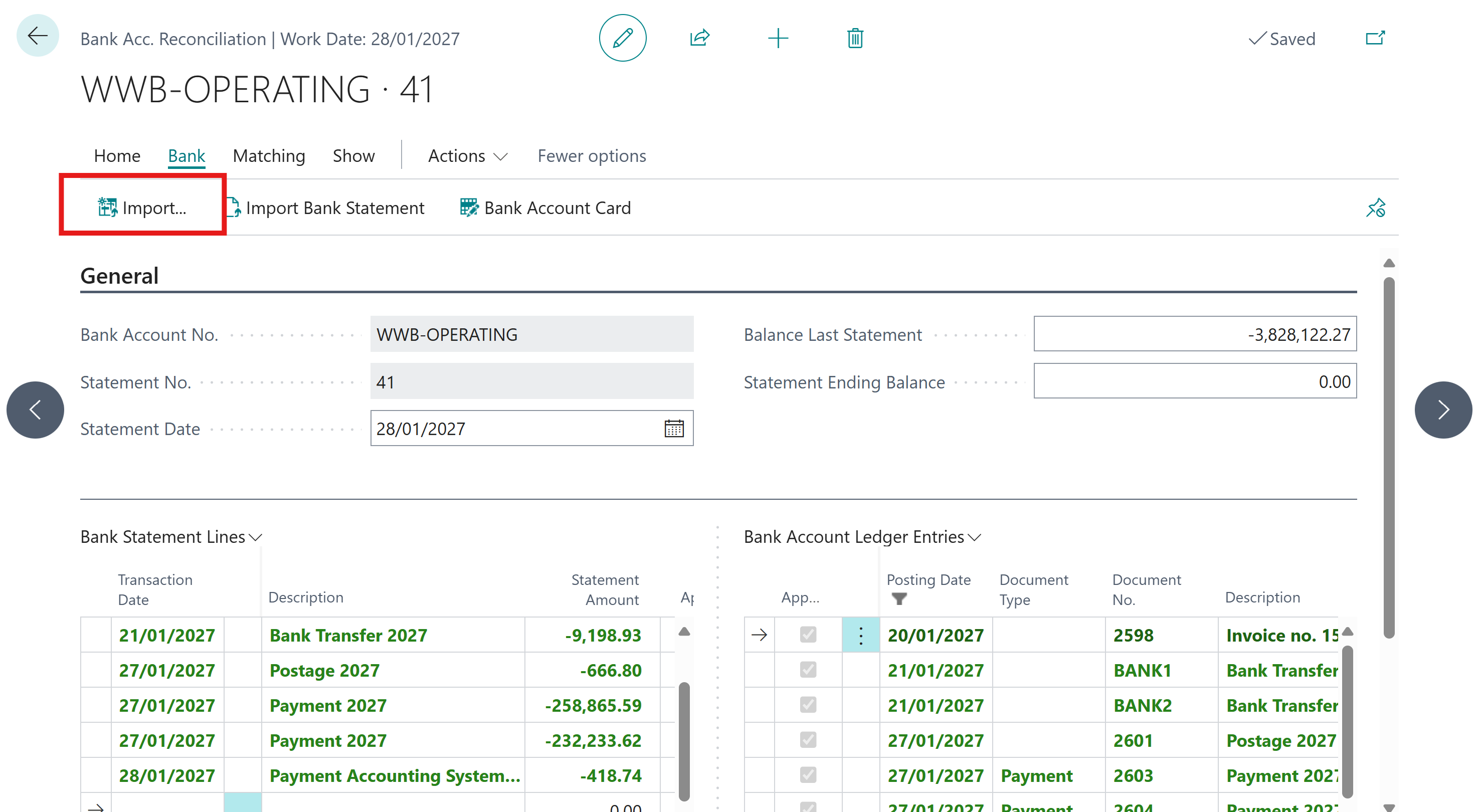
The Import action is available on the Bank Account Reconciliation page in Business Central.
Supported File Formats
The Bank Statement Import feature supports the following file formats:
- Excel files (.xlsx, .xls) - Recommended for structured data with headers
- CSV files (.csv) - Comma-separated values with configurable delimiters
Prerequisites
Before using the Bank Statement Import feature, ensure:
- Bank accounts are properly set up in Business Central
- Bank Account Reconciliation page permissions are granted to users
- Excellent Importer extension is installed and configured
- Import templates are configured for your bank statement format (if using custom mapping)
Settings
Automatic Processing
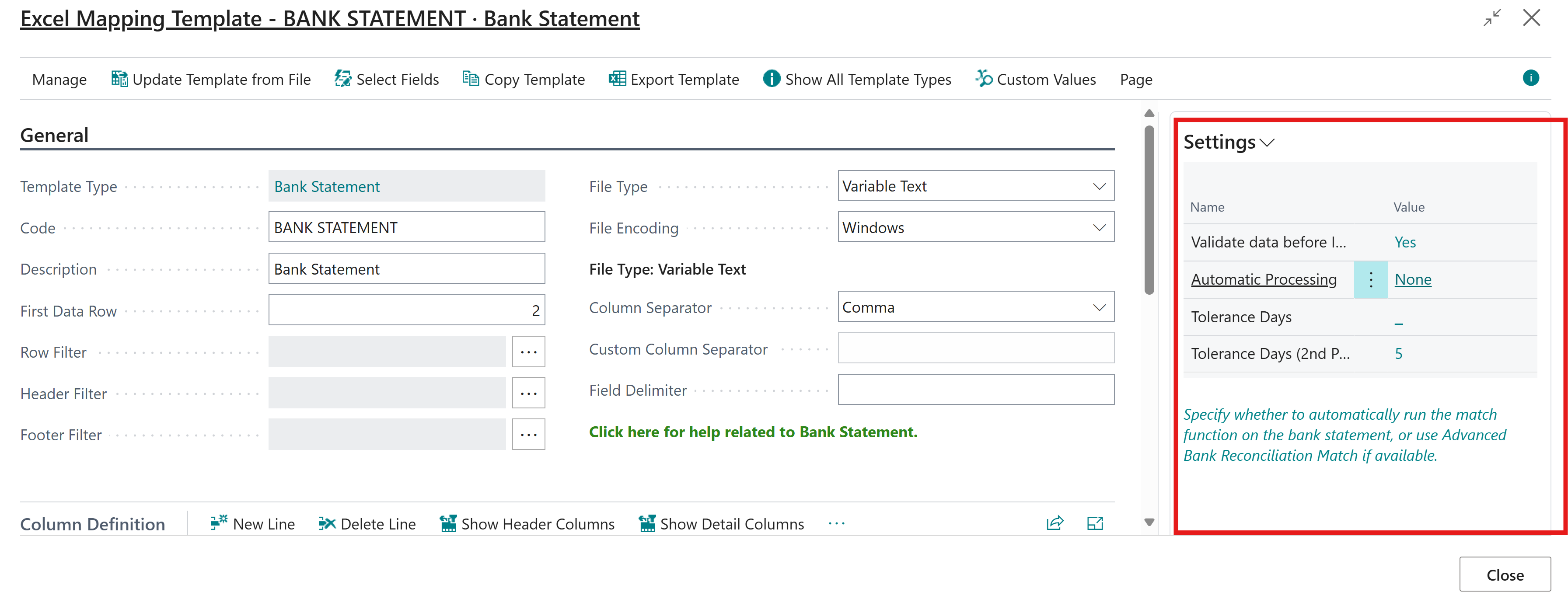
This setting specifies whether to automatically run the Match function on the imported bank statement or use Advanced Bank Reconciliation Match if available.
| Value | Description |
|---|---|
| None (Default) | No automatic matching is performed after import. |
| Matching | Runs the standard automatic match function after import. |
| Advanced Matching | Runs the standard automatic match function followed by advanced matching from Advanced Bank Reconciliation (requires Advanced Bank Reconciliation minimum version 26.0.3.0). |
Tolerance Days
Specifies the number of tolerance days to use for the first automatic match. Typically set to zero if you plan to run the match multiple times.
Tolerance Days (2nd)
Specifies the number of tolerance days to use for the second automatic match. This is usually higher than the first pass, allowing for broader matching criteria.
Update Statement Ending Balance
This setting determines whether the statement ending balance should be automatically calculated and updated based on the imported transactions.
| Value | Description |
|---|---|
| Yes (Default) | Updates the statement ending balance by adding the sum of line amounts to the balance from the last statement. |
| No | Does not update the statement ending balance. You will need to manually enter this value. |
Bank Account Number Assignment
The bank account number is determined based on how the import is initiated:
- From Existing Bank Reconciliation (Default): When importing from an existing bank reconciliation, the bank account number is automatically taken from the reconciliation record. No additional configuration is needed.
- From Bank Account Reconciliation List or Import Definition: When importing from the list or through an import definition, the bank account number is determined using one of the following methods:
- From Import File with Mapping: Use the bank account number from your import file and translate it to the corresponding Business Central bank account number using account/dimension mapping or transformation rules. This is useful when your bank's account numbering differs from Business Central's.
- Import Definition: Specify the bank account number directly in the import definition for automated imports.
This flexibility enables:
- Importing files directly from the Bank Account Reconciliation list when your file contains a bank account number
- Creating reusable templates that work across multiple bank accounts
- Supporting unassisted imports via integrations by automatically determining the correct bank account
Note: Importing multiple bank accounts from a single file is not currently supported. Each import file should contain transactions for only one bank account.
How to Use
Step-by-Step Process
-
Open Bank Account Reconciliation
- Navigate to Bank Account Reconciliation List
- Create a new reconciliation or open an existing one
- Select the appropriate bank account
-
Access Import Function
- Click the Import... action on the Bank Account Reconciliation page
- The Excellent Importer dialog will open
-
Select File
- Click the AssistEdit button (three dots) next to the Filename field
- Browse and select your bank statement file (Excel, or CSV)
- Click OK to confirm the file selection
-
Configure Import Settings (if needed)
- Adjust Automatic Processing options
- Set Tolerance Days for matching
- Configure any field mapping if using custom templates
-
Execute Import
- Click OK to start the import process
- The system will process the file and import bank statement lines
- A success message will appear when the import is complete
-
Review Results
- Verify imported transactions appear in the bank reconciliation lines
- Check that amounts, dates, and descriptions are correctly imported
- Proceed with matching and reconciliation as needed
Import Results
After a successful import, you will see:
- Bank statement lines populated in the reconciliation
- Automatic matching applied (if configured)
- A confirmation message: "The import completed successfully."
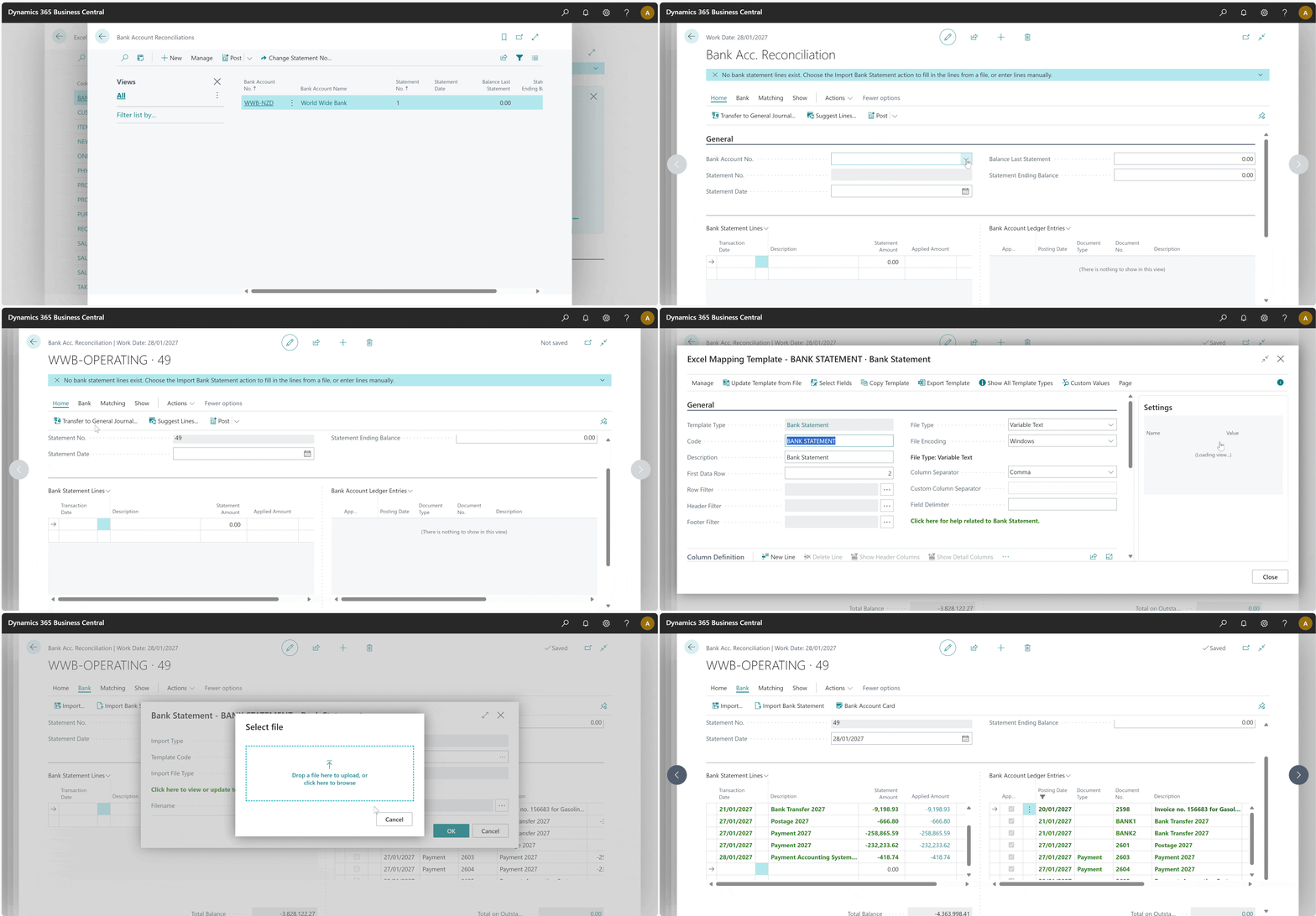
The animation below shows the process of importing the file from above and then the result.
Example
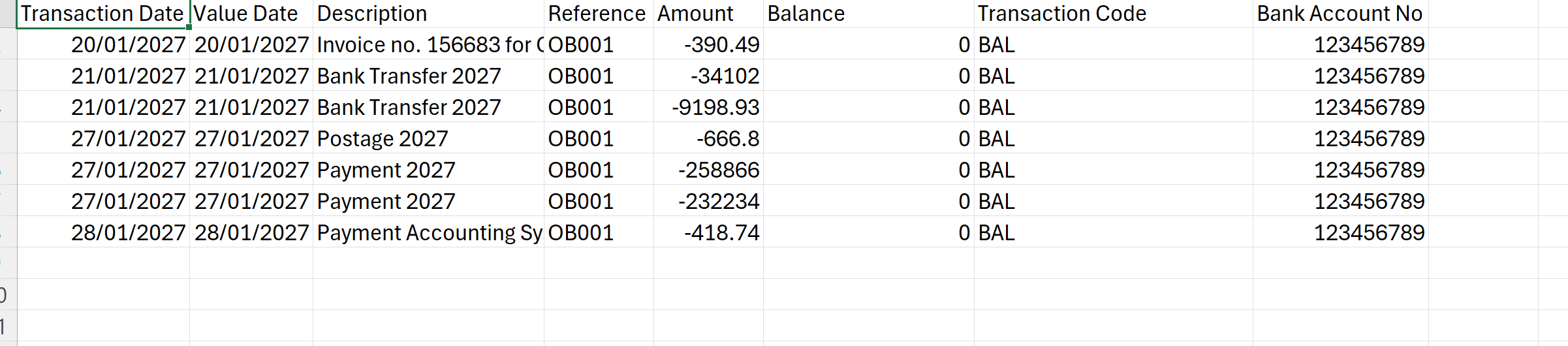
Here is an example of the type of file you can import.
Common Settings
Troubleshooting
Common Issues and Solutions
| Issue | Possible Cause | Solution |
|---|---|---|
| File not found or access denied | File is locked, moved, or permissions issue | Ensure file is closed in other applications and accessible |
| Import fails with validation errors | Data format doesn't match expected structure | Check field mapping and data types in your source file |
| No data imported | Empty file or incorrect sheet/range selected | Verify file contains data and correct sheet is selected |
| Matching doesn't work | Tolerance settings too restrictive | Adjust tolerance days or review matching criteria |
Best Practices
- File Preparation: Ensure your bank statement file has clear headers and consistent data formatting
- Testing: Test with a small sample file first to verify mapping and settings
- Backup: Always backup your data before performing large imports
- Validation: Review imported data before finalizing reconciliation
- Regular Imports: Consider automating regular imports for better cash flow management
Performance Considerations
- Large files (>10,000 lines) may take several minutes to process
- Consider breaking very large files into smaller chunks for better performance
- Close unnecessary applications when importing large files
- Network latency may affect import speed for cloud-based Business Central instances