Environments
Admin Center plugin provides a way to manage tenants' Business Central environments. To access a list of environments, click on the Managed Environments action in the Tenant Manager Role Center or drill down on the Managed Tenants list ``Environments` field.
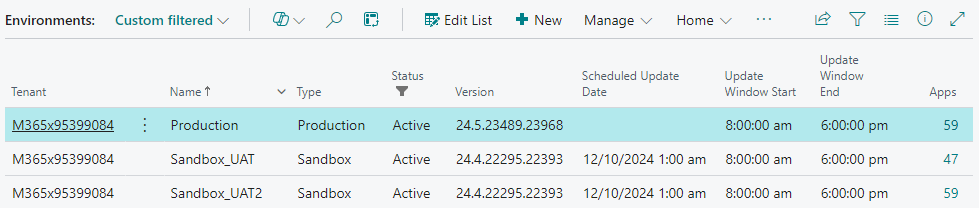
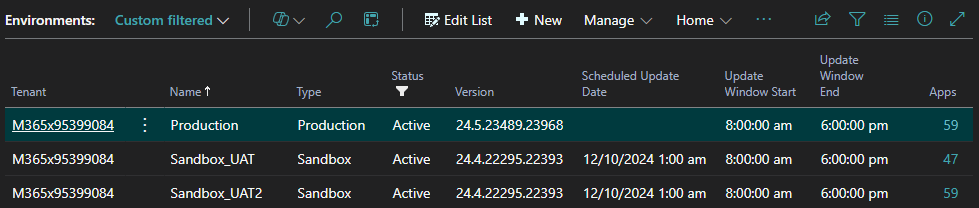
The system refreshes the list of environments every hour. You can also refresh the list manually by clicking on the Refresh button. This action will update the list of environments for selected tenant.
From a list of environments, you can perform the following vital actions with environments: Create, Copy, Delete, Rename, Restore and Recover. You can also manage environment upgrade settings, open the environment Web Client, and compare app versions between environments.
Create Environment
Click on the New action from a list of environments to create a new environment. You will be asked to provide a name, type, country, and version for the new environment.
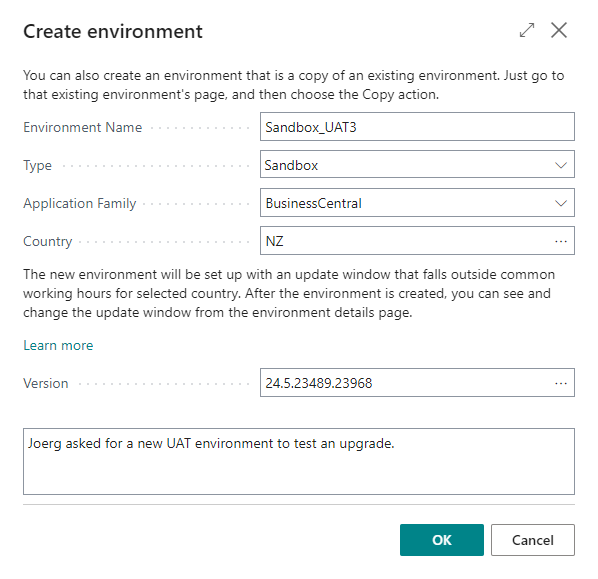
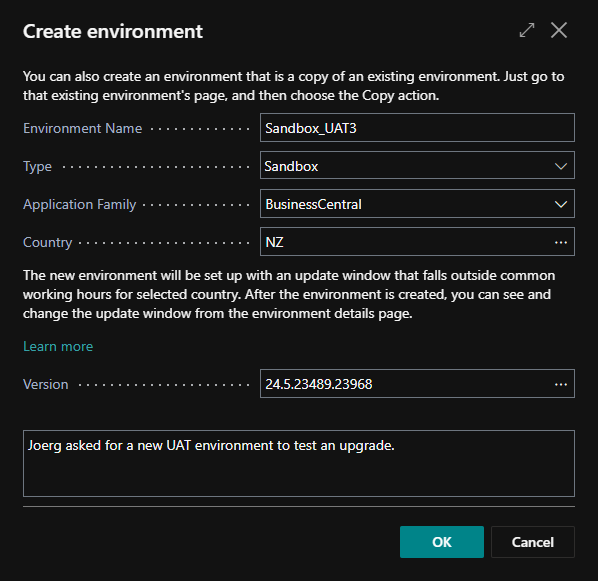
You can also comment on this operation, which will be linked to a new environment as a note.
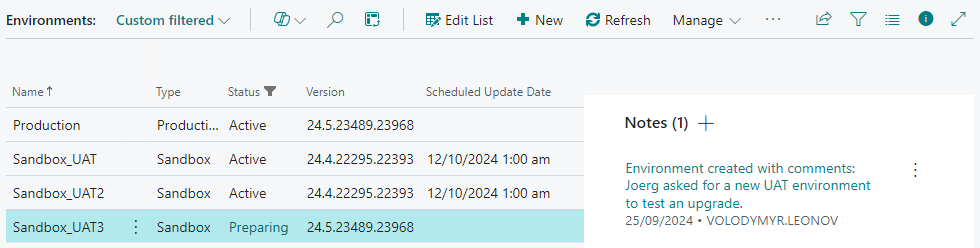
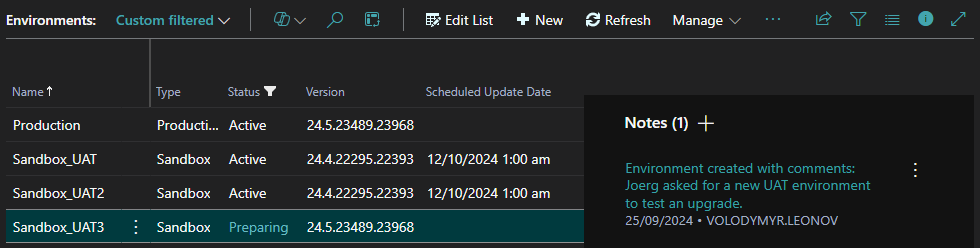
Every environment operation system creates a linked note with the operation details and comments so you can track the environment's history.
Copy Environment
Select an environment you want to copy from a list of environments, click on Manage and then Copy action to create a new environment based on the selected one. You will be asked to provide the name and type for a new environment.
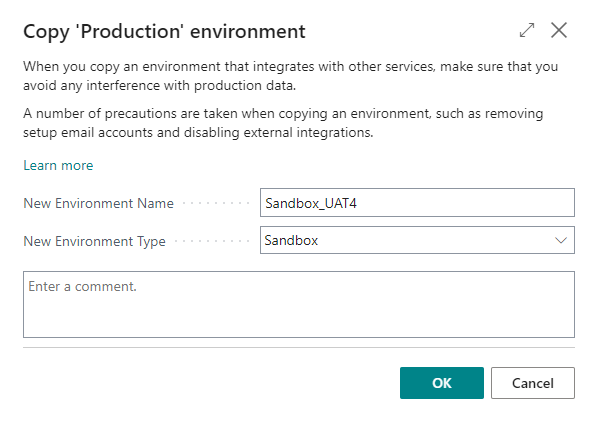
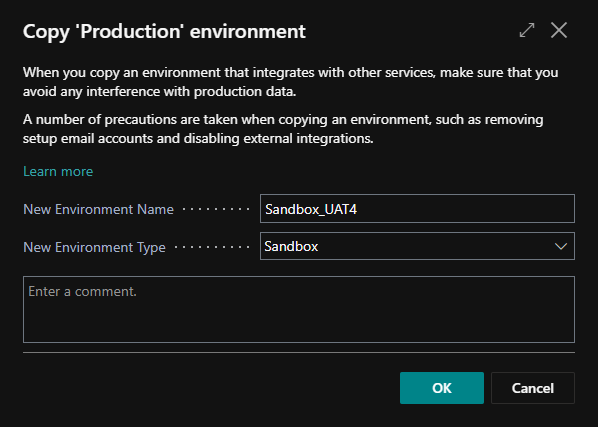
The same goes for the Create operation; you can comment for this operation, which will then be linked to a new environment as a note.
Delete Environment
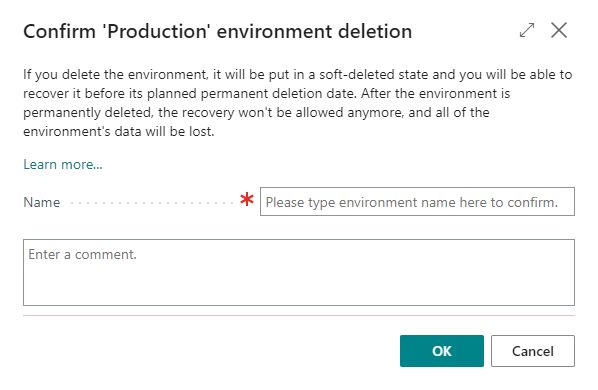
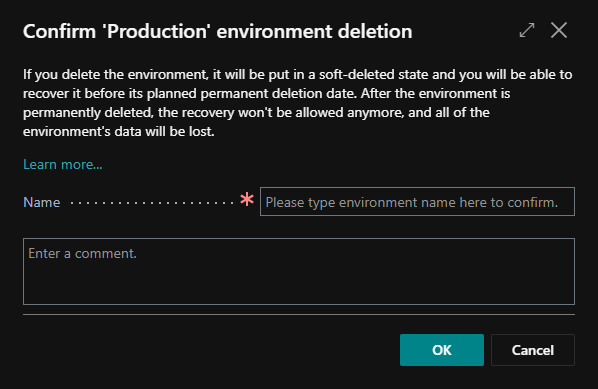
Select an environment you want to delete from a list of environments, click on Manage, and then Delete action to delete an environment with all its data. You will be asked to confirm the deletion of the environment by typing the environment name.
Rename Environment
This feature is not yet implemented.
Restore Environment
This feature is not yet implemented.
Recover Environment
This feature is not yet implemented.
Open Web Client
From a list of environments, select one you want to open, click on Home, and then click the Open Web Client action to open the environment Web Client in a new browser tab.
Compare App Versions
This feature is not yet documented.